Want to stop a website from opening in Chrome on your Android phone? You are in the right place. Chrome on Android does not have a button that blocks a single site. But there are a few simple ways to do it. This guide shows you each method in plain steps, who it is best for, and how to fix common problems.
What does blocking a website mean?
Blocking a website means stopping that site from loading on your device. When a site is blocked, Chrome shows a message or a blank page instead of the content. You can block one site, a group of sites, or a whole category like adult content. Some methods block sites only in Chrome. Others block them in every browser and app on the phone.
Why people block websites on Chrome
People block sites for a few clear reasons:
- Focus. Cut out social media, games, and news during work or study.
- Child safety. Keep kids away from adult or unsafe pages.
- Security. Stop known scam, phishing, and malware sites from opening.
- Less data use. Some heavy sites run in the background and use data.
There is no single “best” reason. Your reason shapes which method fits you.
Does Chrome on Android have a built-in blocker?
No. Chrome on Android does not include a setting to block a specific website. The desktop version does not have one either, but it can use extensions. The mobile version cannot use most extensions. So on Android you need one of the methods below. Each one reaches the same goal in a different way.
Method 1: Google Family Link (best for parents)
Family Link is Google’s free parental control app. It can block sites in Chrome on a child’s Android phone. It is the right choice if you manage a child’s device.
You set it up on your phone and on the child’s phone. The child signs in to Chrome with their own supervised Google account. Then you control their browsing from your phone.
Steps:
- Install the Family Link app on your phone from the Play Store.
- Create or link a Google account for your child through the app.
- Sign the child into their Android phone with that account.
- In Family Link, tap your child’s name, then tap Controls.
- Tap Content Restrictions, then tap Google Chrome.
- Choose a filter: Allow all sites, Try to block explicit sites, or Only allow approved sites.
- Tap Manage Sites to add the exact web addresses you want to block or allow.
Good to know: when a child is signed in under Family Link, Incognito mode is turned off. So they cannot use a private tab to slip past the filter. The child can also send you a request to visit a blocked site, and you can approve or deny it from your phone.
Method 2: Website blocker apps (best for your own phone)
For your own device, a blocker app from the Play Store is the simplest way to block sites in Chrome. Apps like BlockSite, Stay Focused, AppBlock, and Freedom all do this.
Most of these apps work by running a local filter on the phone. They check each page request and stop the ones on your list. Because of this, they often block the site in every browser and app, not just Chrome.
Steps:
- Download a blocker app from the Play Store.
- Open it and grant the permissions it asks for. This often includes Usage Access and a local VPN or Accessibility permission.
- Open the block list inside the app.
- Add the full web address of each site you want to block.
- Save your list and test it in Chrome.
Many of these apps add helpful extras. You can schedule blocks for work hours only. You can set a password so the block is hard to remove. Some let you block whole categories like adult or gambling sites with one tap.
Method 3: Private DNS (block sites with no app)
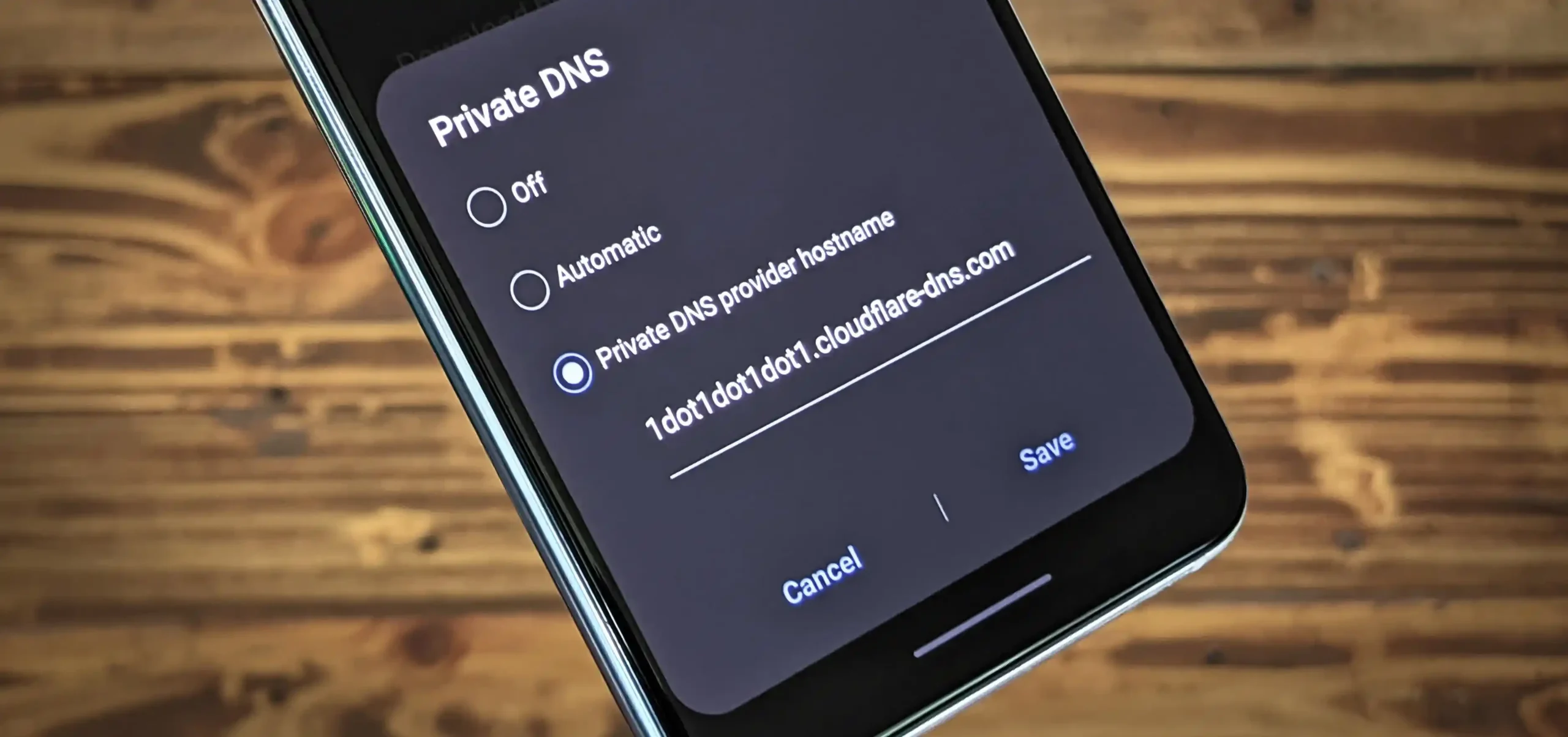
Private DNS lets you filter sites on the whole phone without installing any app. It works on Android 9 and newer. It blocks unsafe or adult sites across Chrome and every other app.
DNS is the system that turns a web address into a number the phone can reach. A filtering DNS service simply refuses to look up sites you do not want. The catch is that it blocks whole domains, not single pages inside a site. It also does not block ads inside Chrome.
Steps:
- Open Settings, then tap Network & Internet.
- Tap Private DNS. On Samsung phones, look under Connections, then More Connection Settings, then Private DNS.
- Choose Private DNS provider hostname.
- Type the hostname of a filtering provider from the table below.
- Tap Save.
Pick a hostname based on what you want blocked:
| Filtering service | What it blocks | Private DNS hostname |
| Cloudflare for Families | Malware and adult content | family.cloudflare-dns.com |
| CleanBrowsing Family | Adult content, forces SafeSearch | family-filter-dns.cleanbrowsing.org |
| AdGuard DNS Family | Ads, trackers, and adult content | family.adguard-dns.com |
| OpenDNS FamilyShield | Adult content | familyshield.opendns.com |
One key point that many guides get wrong: Android’s Private DNS box needs a hostname, like the ones above. It does not accept a plain number address. If you type a number, the phone shows an error and the filter will not work.
Method 4: SafeSearch (filter, not a full block)
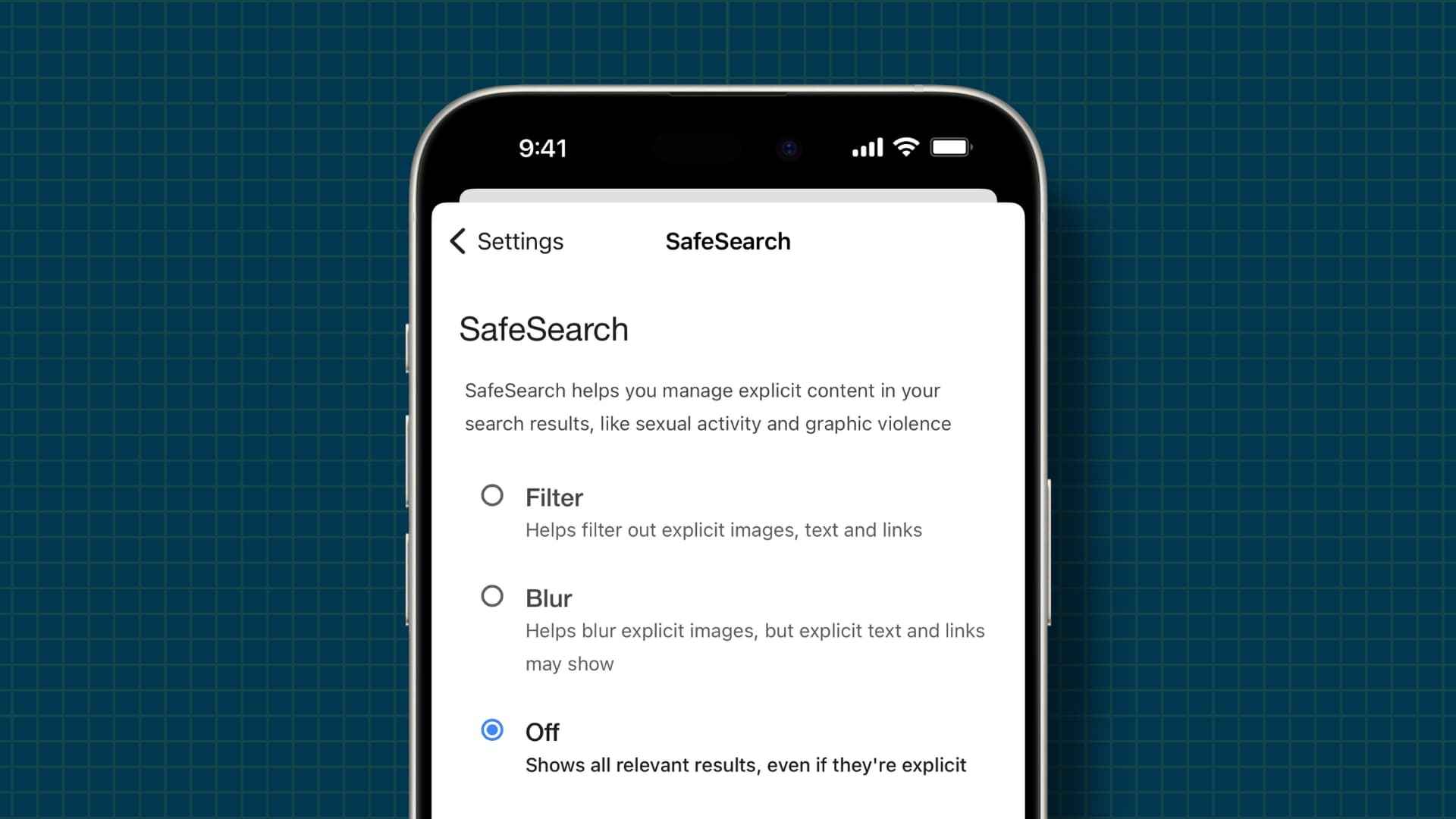
SafeSearch hides adult content from Google search results. It does not block a specific website. Think of it as a filter for search, not a wall around a site.
SafeSearch is still useful. It stops explicit images and links from showing up when you or your child searches. To turn it on for a child, use Family Link: tap your child’s name, then Controls, then Content Restrictions, then Google Search, and switch SafeSearch on. Done this way, the child cannot turn it off.
If your only goal is to keep one exact site from opening, SafeSearch alone will not do it. Pair it with Family Link, an app, or Private DNS.
Method 5: Router blocking (covers every device)

Router blocking stops a site on every device that uses your Wi-Fi. This is handy for a shared home.
You log in to your router’s settings page and look for a section named parental controls, access restrictions, or website filtering. You add the web addresses you want to block and save. The exact menu changes from router to router, so check your model’s guide.
This method covers phones, tablets, laptops, and smart TVs at once. It only works while a device is on your Wi-Fi, not on mobile data.
Which method should you pick?
Use this quick guide to match the method to your need:
| Method | Best for | Blocks one exact site? | Cost | Works in all browsers? |
| Family Link | A child’s phone | Yes | Free | Chrome and some apps |
| Blocker app | Your own phone | Yes | Free or paid | Often yes |
| Private DNS | Whole phone, no app | Domains only | Free | Yes, all apps |
| SafeSearch | Cleaner search results | No, filters only | Free | Search results only |
| Router | Every device on Wi-Fi | Domains only | Free | Yes, on Wi-Fi |
A simple rule: for a child, start with Family Link. For your own focus, use an app with a schedule. For the strongest, hard-to-skip filter, add Private DNS or router blocking on top.
Blocking sites in Chrome on an iPhone
If you also have an iPhone, the steps are different. Chrome on iPhone follows the phone’s system rules through Screen Time.
- Open Settings, then tap Screen Time. To block sites for a child, tap their name first.
- Tap Content & Privacy Restrictions and turn it on.
- Tap App Store, Media, Web & Games, then tap Web Content.
- Choose Limit Adult Websites or Only Approved Websites.
- Under Never Allow, tap Add Website and enter the address you want to block.
Set a Screen Time passcode so the limit cannot be switched off. On iPhone, this filter mainly covers Safari and built-in web views, so it is best paired with a strict “Only Approved Websites” setting.
Troubleshooting: when a blocked site still opens
A blocked site can sometimes still load. Here are the usual causes and fixes.
| Problem | Likely cause | Fix |
| Site still opens after blocking | Old page saved in Chrome | Clear Chrome’s cache and restart the app |
| Block stops working after an update | App lost its permission | Reopen the app and grant permissions again |
| Private DNS shows an error | A number was typed instead of a hostname | Enter the correct provider hostname |
| Family Link change not applied | Device not synced yet | Wait a few minutes and check the child is online |
| Site opens with and without “www” | Only one version was added | Add both the www and non-www address |
If a problem stays after these steps, switch to a stronger method. DNS and router blocking are harder to skip than a single app.
Common mistakes to avoid
- Typing a number into Private DNS. The box needs a hostname, not a number address.
- Expecting SafeSearch to block a site. It only filters search results.
- Forgetting the passcode. Without a passcode on Family Link or Screen Time, the block is easy to turn off.
- Adding only one form of the address. Add both the www and non-www version of a site.
- Thinking Digital Wellbeing blocks sites. It sets time limits and reminders. It does not block a web address.
- Using one browser setting and expecting it to cover all apps. Only DNS and router methods reach every app.
Privacy: what to check before you trust an app
Some blocker apps need deep access to work. They may use a local VPN, Accessibility, or Usage Access. These permissions let the app see your traffic so it can filter it. That is normal for this kind of tool, but it means you should choose with care.
Before you install:
- Read recent reviews and the app’s rating.
- Open the privacy policy and check what data it keeps.
- Pick a well-known app with a clear owner.
- Remove the app if it asks for far more access than the job needs.
DNS providers can also see the addresses you look up. Choose a provider you trust and that states a clear no-logging or limited-logging policy.
Top tips for blocking that lasts
- Be clear on your goal. Focus, child safety, and security each point to a different method.
- Combine two layers. A blocker app plus Private DNS is much harder to skip than one method alone.
- Set a passcode. This is the single most important step for a child’s device.
- Review your list. Needs change, so check your blocked sites every few months.
- Talk it through. If you block sites for a child, explain why. Buy-in lowers the urge to find a way around it.
Frequently asked questions
Can you block a website in Chrome on Android?
Yes. Chrome on Android has no built-in blocker, so you use Family Link, a blocker app, Private DNS, or your router. Each one can stop a site from loading.
Can I block sites in Chrome without any app?
Yes. Set a filtering hostname in Settings under Private DNS, or block the site in your router. Neither needs an extra app. For a child, Family Link also blocks sites in Chrome.
Is parental control required to block a site?
No. Parental control through Family Link is only one option, and it is aimed at a child’s phone. For your own phone, a blocker app, Private DNS, or your router work without it.
Does SafeSearch block specific websites?
No. SafeSearch hides adult content from Google search results. To block an exact site, use Family Link, a blocker app, Private DNS, or your router.
Can I block a website only during work hours?
Yes. Apps like BlockSite and Stay Focused let you set a schedule. You can block social media from 9 to 5 and open it again later.
Will blocking websites slow down my phone?
No. Blocking sites does not slow a phone. It can even help, since heavy pages no longer load in the background.
How do I stop someone from getting around the block?
Use a passcode on Family Link or Screen Time, and combine two methods. DNS and router blocking are harder to skip than a single app. For a child under Family Link, Incognito mode is already off.
Does blocking work in Incognito mode?
It depends on the method. App-based blocks may not run in private tabs. DNS and router blocking still work in any tab. For a supervised Family Link account, Incognito is turned off by default.
Conclusion
Chrome on Android has no one-tap site blocker, but you have several strong options. For a child, Family Link gives you full control with a passcode. For your own focus, a blocker app with a schedule is quick and flexible. For a filter that covers the whole phone, Private DNS works with no app at all. And for a shared home, router blocking reaches every device on the Wi-Fi.
Pick the method that matches your goal, set a passcode where you can, and review your list now and then. With one or two layers in place, you stay in control of what opens on your phone.
Key takeaways
- Chrome on Android has no built-in setting to block a single website.
- Family Link is the best free choice for a child’s phone and blocks sites right inside Chrome.
- A blocker app is the easiest way to block sites on your own phone, often across all browsers.
- Private DNS filters the whole phone with no app, but it needs a hostname, not a number.
- SafeSearch filters search results only and does not block a specific site.
- Router blocking covers every device on your Wi-Fi.
- Always set a passcode and combine two layers for blocking that holds.