Why Figma Plugins Matter More Than Ever in 2026
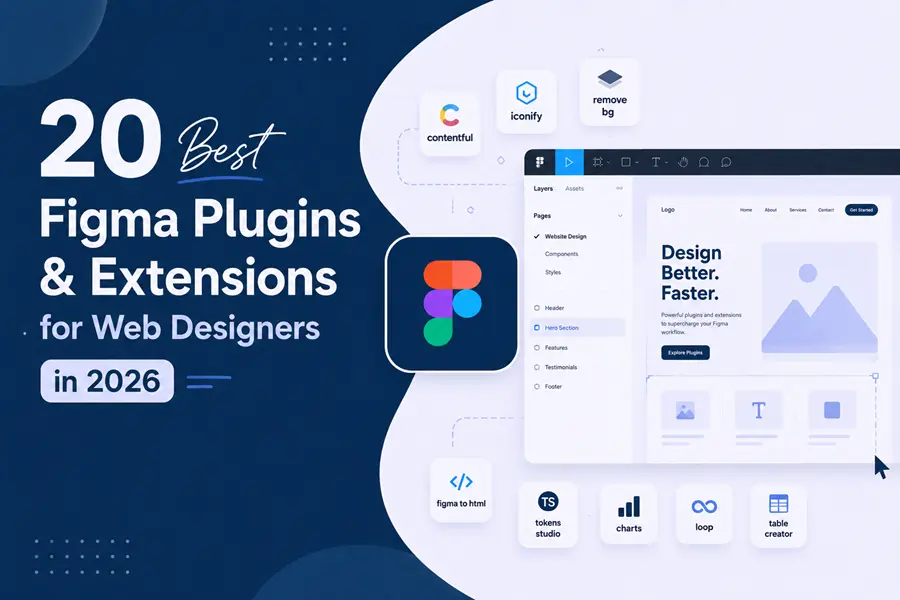
Figma is the most popular tool for web and UI design, but plugins make it even more powerful. They help designers save time, automate tasks, and add features that Figma doesn’t offer by default. By 2025, the Figma plugin library had grown to over 5,000 plugins. However, only a small number truly improve workflows and productivity. This guide focuses on those high-value plugins.
A major trend in 2026 is AI-powered design tools. Plugins like Relume, UXPilot, and Magician can now create wireframes, UI copy, and layouts that are often ready to use with little editing.
Another big improvement is design-to-code workflows. Tools such as Builder.io, Anima, and Locofy help turn Figma designs into code faster, making developer handoff much easier.
In this guide by Web Design Los Angeles team, you’ll discover 20 of the best Figma plugins for 2026. Each recommendation includes its key features, strengths, limitations, ideal users, and whether the free version is actually useful.
Who This Guide Is For
- Web designers building landing pages, portfolios, and marketing sites
- UI/UX designers working on SaaS products and mobile apps
- Freelancers who need to move fast and deliver polished work
- Agencies managing multiple client projects simultaneously
- WordPress designers who need clean HTML/CSS export from Figma
- Product designers responsible for design systems and developer handoff
- Beginners who want to build professional habits from day one
How AI Is Changing Figma Workflows in 2026
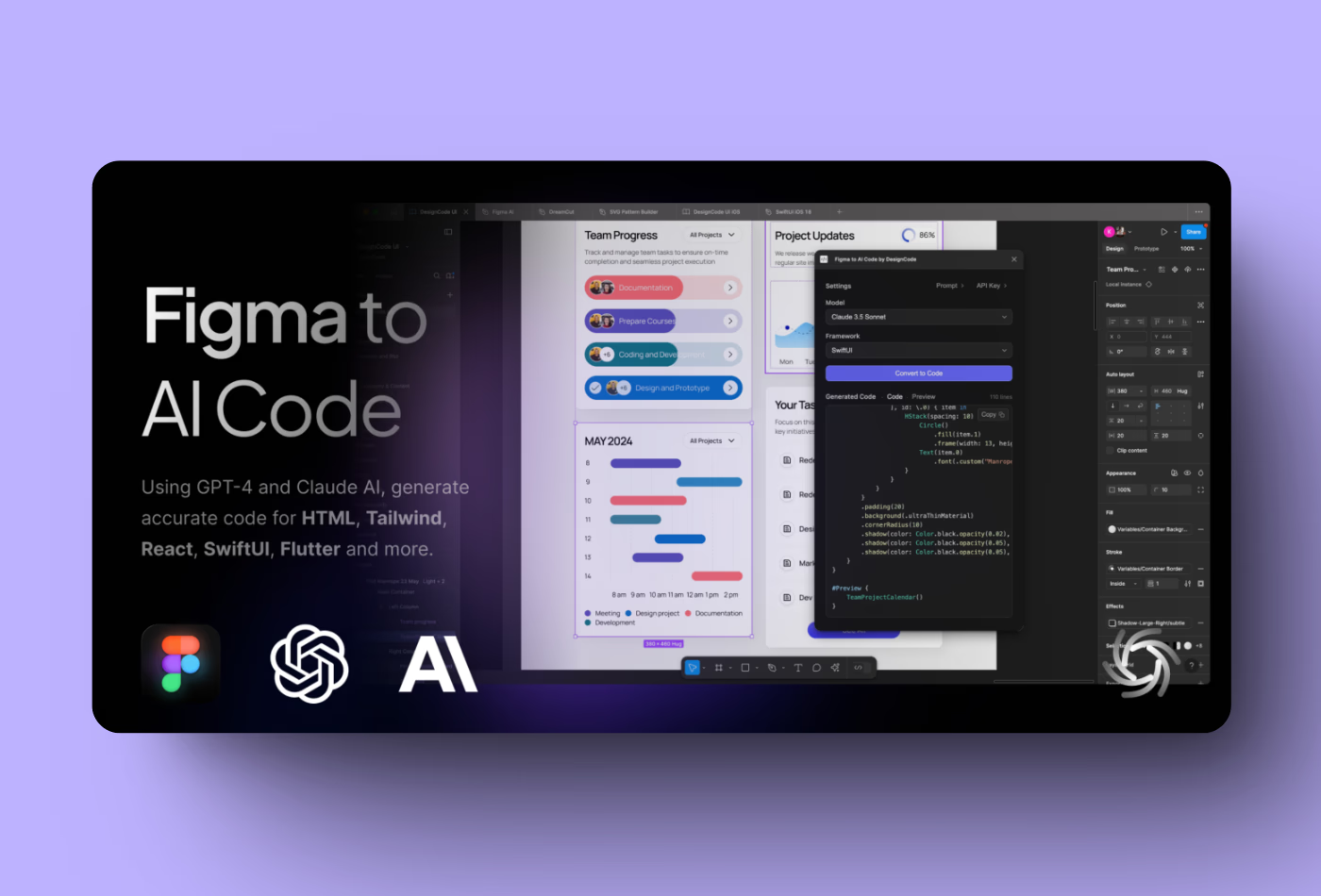
Three specific workflow areas have been transformed by AI plugins in the past eighteen months. Understanding these shifts helps you choose where to adopt AI tools and where manual design still wins.
Ideation speed: AI plugins like UXPilot and Relume have reduced the time from blank canvas to first wireframe from hours to minutes. This changes how designers handle discovery and client presentations. You can generate three layout directions before a kickoff call, walk a client through real options, and refine from there.
Content population: Magician and Content Reel have made realistic prototypes the default, not the exception. Clients who previously saw Lorem ipsum text now see properly structured copy and real placeholder data, which dramatically improves feedback quality.
Dev handoff: AI-assisted tools like Builder.io and Anima now map Figma components to actual code components, not just pixel coordinates. Developers receive cleaner starting points, and design-to-production fidelity has improved across the board.
Quick Comparison | 20 Best Figma Plugins at a Glance
Use this table to quickly identify which plugins match your category needs, budget, and workflow priorities.
| Plugin | Category | Free/Paid | AI Features | Best For |
| UXPilot (Nodey) | AI Generation | Freemium | Full AI wireframes & heatmaps | AI-first UI/UX designers |
| Magician | AI Design | Freemium | Copy, icons, image generation | Beginners & freelancers |
| Relume | AI Wireframing | Freemium ($18-$40/mo) | AI sitemap + wireframe gen | Agencies & web designers |
| Builder.io | Design-to-Code | Freemium | AI-assisted code export | Dev handoff & SaaS teams |
| Stark | Accessibility | Freemium ($15/mo+) | AI alt-text suggestions | All designers (essential) |
| Tokens Studio | Design Systems | Freemium | Token sync across platforms | Design system teams |
| Iconify | Icons | Free | No (10k+ icon sets) | All web designers |
| Content Reel | Content/Data | Free | No | Rapid prototyping & demos |
| Unsplash | Stock Photos | Free | No | Mockups & presentations |
| Anima | Design-to-Code | Freemium ($39/mo) | AI component mapping | Agencies & product teams |
| LottieFiles | Animations | Freemium | No | Motion design & web anim |
| Autoflow | User Flows | Free | No | UX docs & client pres |
| Figma to Code | Dev Handoff | Free | No | Developers & freelancers |
| Spline | 3D Design | Freemium | No | 3D web & scroll effects |
| Coolors | Color Tools | Free | No | Brand palettes & UI color |
| Design Lint | Productivity | Free | No | Quality control & cleanup |
| Mockuuups Studio | Mockups | Freemium ($7.99/mo) | No | Client presentations |
| ProtoPie Connect | Prototyping | Freemium | No | Advanced interactions |
| Google Sheets Sync | Productivity | Free | No | Client-editable content |
| Blush | Illustrations | Freemium ($7/mo) | No | Landing pages & onboarding |
Detailed Plugin Reviews | What Each One Actually Does
1. UXPilot (Nodey) – Best AI Wireframing Plugin
| Category | AI Design Generation |
| Pricing | Freemium – paid plans start from approximately $20/month |
| AI Features | Full screen generation from prompts, attention heatmaps, connected user flows |
| Best For | UI/UX designers, product designers, SaaS teams |
| Free Tier | Limited credits included; generous enough to evaluate quality |
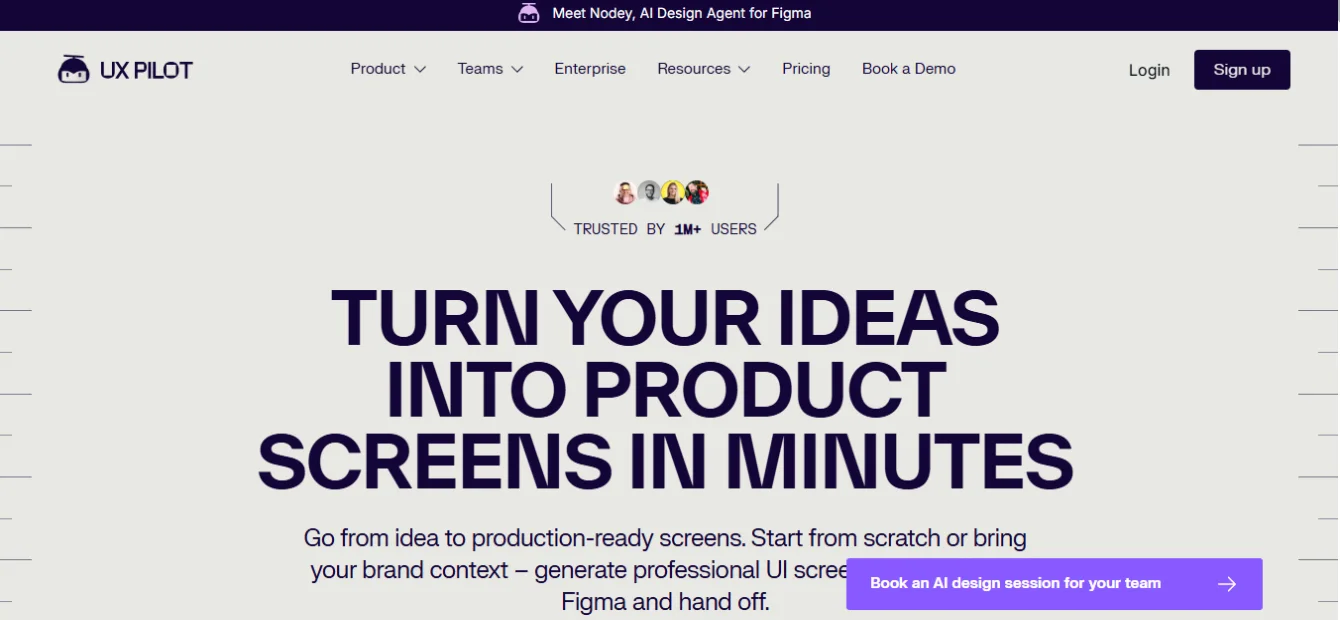
UXPilot is one of the leading AI wireframing tools in 2026. It turns text prompts into editable wireframes and high-fidelity UI screens directly inside Figma through its Nodey plugin. Unlike many AI design tools, it can generate complete, connected user flows rather than individual screens, making the design process faster and more structured.
A standout feature is its AI-powered attention heatmap, which predicts where users are most likely to focus on a design. This helps designers evaluate visual hierarchy and improve layouts before user testing or development begins.
Key Features
- Text-prompt to wireframe and high-fidelity screen generation
- Multi-screen user flow generation from a single prompt
- Predictive attention heatmaps for visual hierarchy validation
- Support for custom design systems (train on your own component library)
- Seamless Figma integration through the Nodey plugin
Honest Assessment
Pros: Genuinely production-usable outputs, connected flows, heatmap intelligence, excellent for early-stage client work.
Cons: Outputs require cleanup and brand alignment before delivery. Not a replacement for skilled design, but a very fast starting point.
Beginner friendliness: Moderate. The concept is easy, but making good prompts takes practice.
2. Magician – Best AI Plugin for Beginners & Fast Ideation
| Category | AI Design & Content Generation |
| Pricing | Freemium – uses Figma AI credits bundled with Figma subscription |
| AI Features | Copy generation, icon generation, image generation from text prompts |
| Best For | Freelancers, beginners, fast-moving design sprints |
| Free Tier | Yes – credits included with Figma subscription |
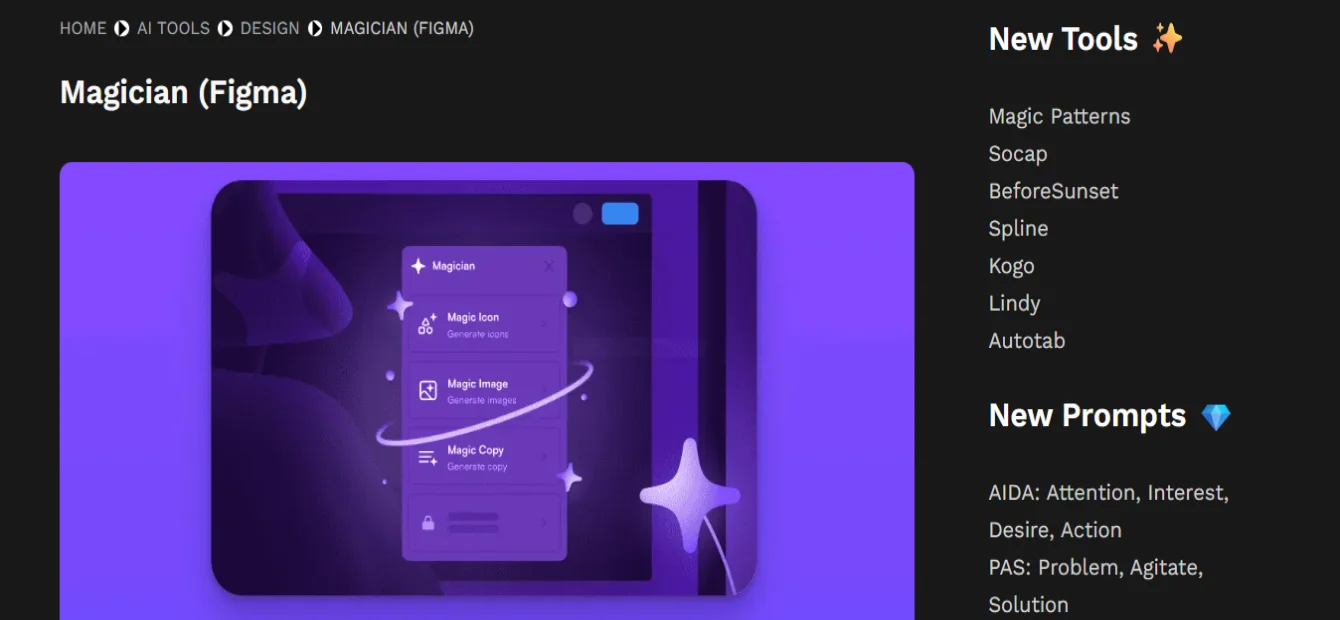
Magician is the most beginner-friendly AI plugin in the Figma ecosystem. Install it, open a file, and you are up and running within two minutes. There is no account setup, no external dashboard, and no token configuration. It runs directly inside your Figma workspace and taps into your Figma AI credit allocation.
The three core capabilities are copy generation, icon creation, and image generation. For web designers, the copy generation is the most immediately useful. Select a button, a card component, or a hero section and prompt Magician to fill it with context-appropriate text. The results are not always perfect, but they are consistently better than Lorem ipsum and dramatically faster than writing placeholder copy by hand.
Key Features
- Generate UI copy from a short text prompt within selected components
- Create custom icons matching your design system’s style
- Generate placeholder images from text descriptions
- Zero setup required – works instantly after installation
- Useful for ideation, concept work, and client proposals
Honest Assessment
Pros: Effortless to use, immediate value on first run, great for breaking creative blocks quickly.
Cons: Generated icons and images sometimes need significant refinement. Not suitable as final production assets without review.
Beginner friendliness: Excellent. The easiest AI plugin to start with.
3. Relume – Best Plugin for Web Design Agencies & Freelancers
| Category | AI Wireframing & Component Library |
| Pricing | Free plan available; paid plans from $18/month to $40/month |
| AI Features | AI sitemap generation, AI wireframe creation, Claude-powered copywriting |
| Best For | Agencies, freelancers, web designers building marketing sites |
| Free Tier | Limited components and exports – useful for evaluation |
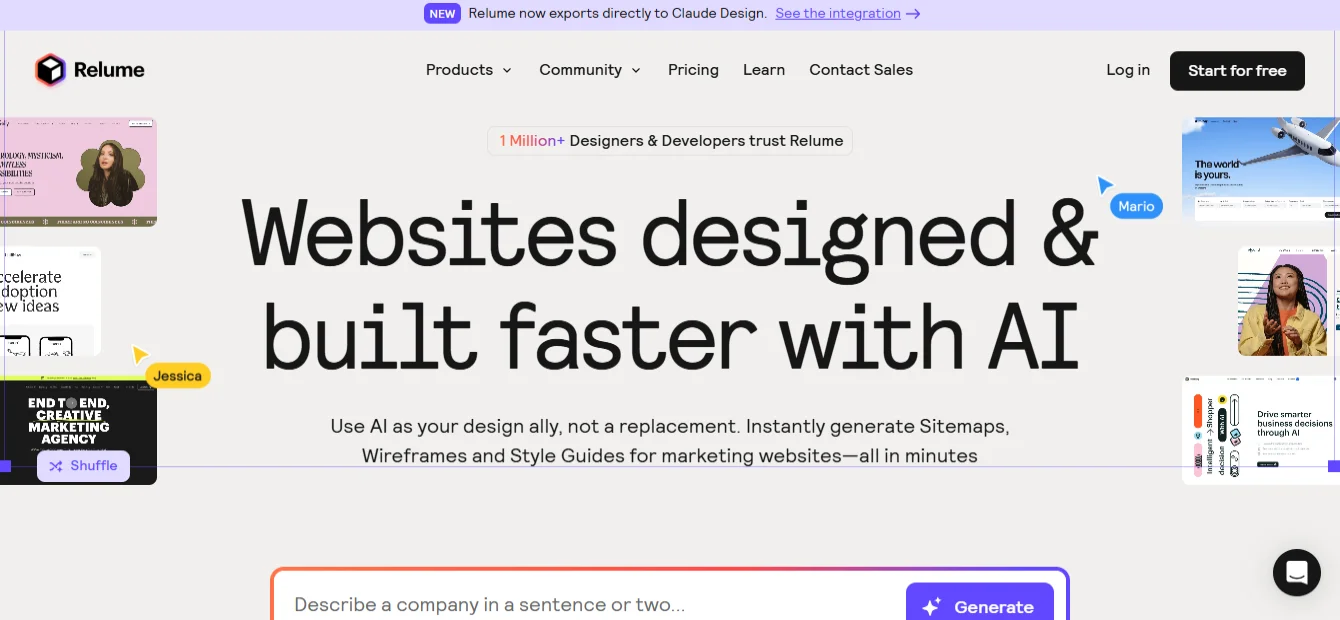
Relume has a specific and well-executed focus: marketing websites. If you are building landing pages, company sites, or campaign pages – especially in Webflow or React – Relume is one of the most time-saving tools in your entire stack, not just within Figma.
The workflow starts with describing your project. Relume generates a full sitemap with logical page architecture, then fills each page with wireframe sections drawn from a library of over 1,000 production-ready components.
Every component is clean, well-structured, and built for responsive implementation. The September 2025 update introduced Wireframing 2.0 with Claude-powered copywriting across full pages, which keeps tone and messaging consistent in a way that single-prompt tools cannot.
Key Features
- AI sitemap generation from a brief project description
- 1,000+ production-ready Figma components for marketing sites
- Claude-powered whole-page copywriting for tone consistency
- Direct Webflow and React export paths
- Chrome Extension for quick component access outside Figma
Honest Assessment
Pros: Exceptional for marketing website sprints. Sitemap-to-wireframe in minutes is genuinely as fast as advertised.
Cons: Less suited to product design or complex app flows. Components lean toward marketing patterns.
Beginner friendliness: Good. The AI guidance reduces the decisions beginners find overwhelming.
4. Builder.io – Best Design-to-Code Plugin for Production Teams
| Category | Design-to-Code / Developer Handoff |
| Pricing | Freemium – free tier available, paid team plans |
| AI Features | AI-assisted component mapping, Figma-to-React/Vue/HTML export |
| Best For | Agencies, SaaS product teams, developers working with designers |
| Free Tier | Yes – functional for individual use |
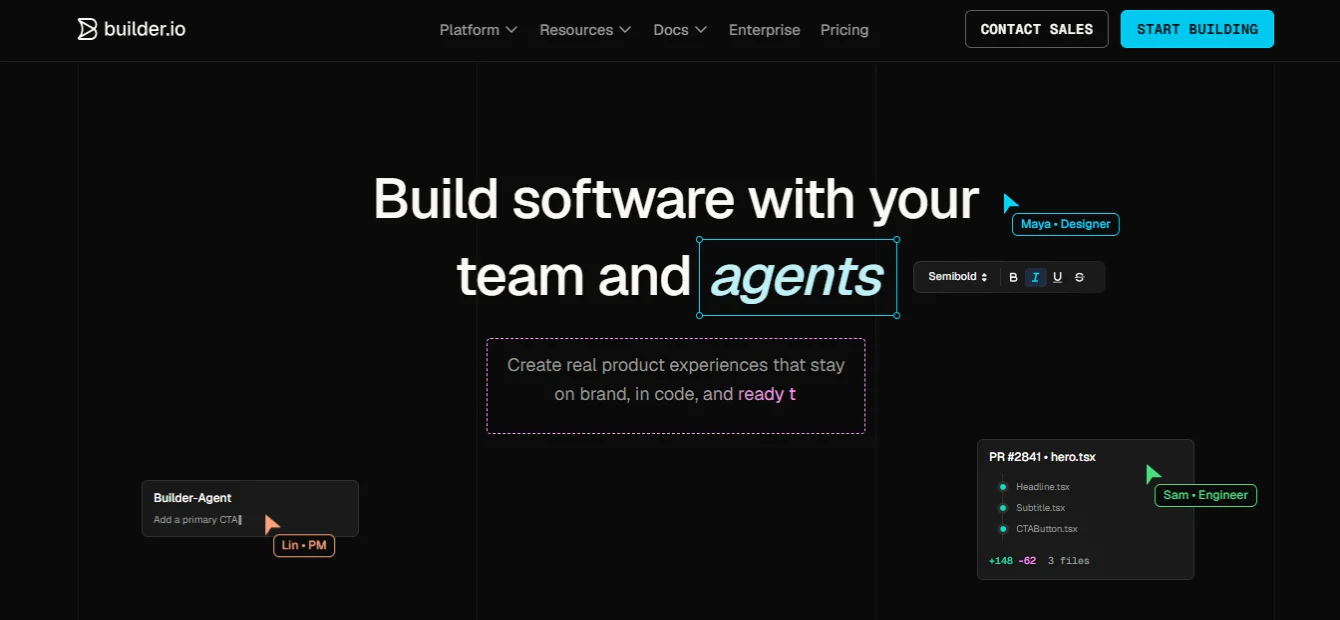
Builder.io bridges one of the most persistent friction points in web design: the gap between what a designer creates in Figma and what a developer actually builds in code. Rather than exporting pixel specs for developers to interpret, Builder.io converts Figma layouts into live React, Vue, Angular, Tailwind, or HTML code with one-click exports.
Builder.io is considered more reliable than other design-to-code tools because it uses a smart component mapping system. This system lets you connect your Figma components with the actual components in your codebase. So instead of generating brand-new HTML for every design element, it reuses your existing code components.
As a result, the output is much more accurate, matches your real product structure, and stays consistent with your design system. It also reduces mistakes and saves time because developers don’t need to heavily revise or rewrite the generated code.
Key Features
- One-click export to React, Vue, Angular, HTML, Tailwind, and more
- Component-to-code mapping using your existing codebase
- Responsive layout generation preserving Figma auto-layout logic
- Visual CMS integration for content-editable production pages
- Works with existing design systems and component libraries
Honest Assessment
Pros: Production-grade code quality when files are well-organized. Component mapping is genuinely unique.
Cons: Output quality depends heavily on how cleanly your Figma file is structured. Messy files produce messy code.
Beginner friendliness: Moderate. Better suited to designers who understand component-based development.
5. Stark – The Non-Negotiable Accessibility Plugin
| Category | Accessibility |
| Pricing | Free basic tier; paid plans from approximately $15/month |
| AI Features | AI-powered alt-text suggestions, automated remediation recommendations |
| Best For | All designers – accessibility should be standard, not optional |
| Free Tier | Yes – WCAG contrast checking and vision simulation are free |
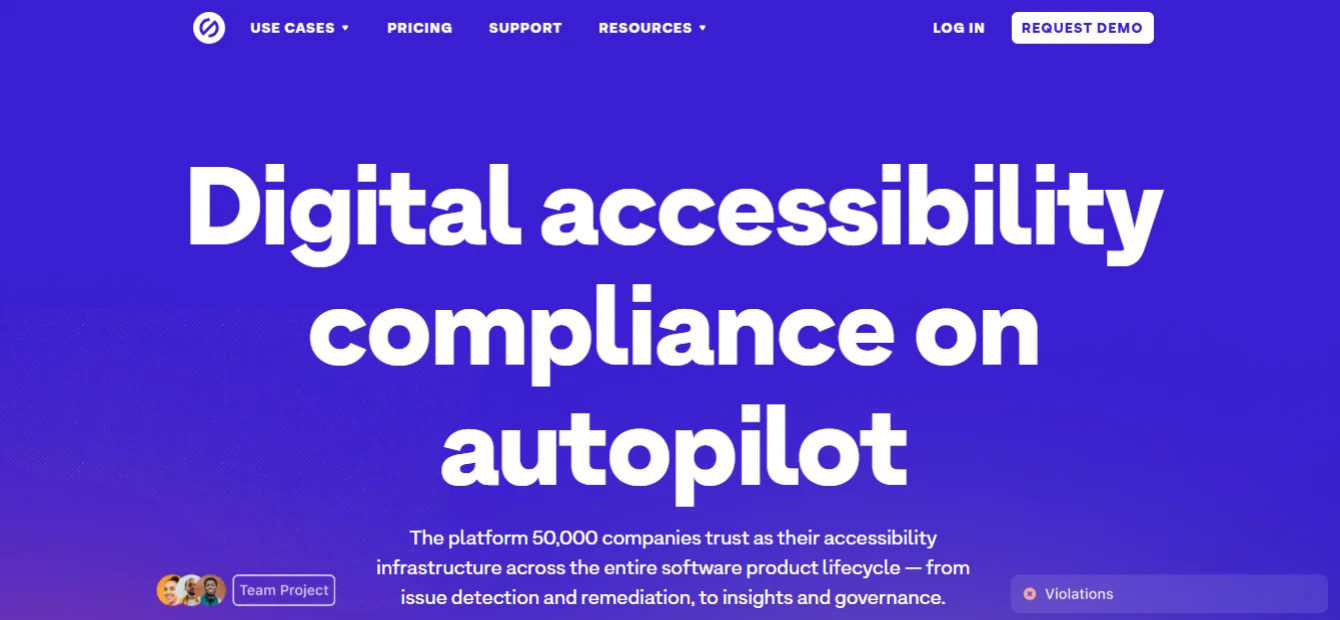
Stark is one of the most popular accessibility plugins in Figma because accessibility is no longer optional in 2026. Many regions now legally require websites to follow WCAG accessibility standards. Using accessibility tools during the design stage is also much more efficient and cost-effective than fixing issues after development.
The free tier covers the two most essential checks. Color contrast ratios against WCAG AA and AAA standards, and vision simulation that shows how color-blind users experience your design. Together, these tools help designers catch major accessibility issues early and avoid costly fixes later in development.
The paid tier adds AI-powered alt-text generation for images, automated focus order checking, annotation tools for developer handoff, and priority scoring for which issues to fix first. For agencies and product teams working with enterprise clients, these features often save time and money by reducing repeated QA checks and revisions, usually paying for themselves within the first project.
Key Features
- Real-time WCAG AA/AAA color contrast checking
- Eight types of color blindness and low vision simulation
- AI-powered image alt-text generation (paid)
- Automated accessibility annotations for developer handoff
- Full-page scanning to catch issues you would otherwise miss
Honest Assessment
Pros: Industry standard for good reason. Free tier covers 80% of what most designers need daily.
Cons: Full feature set requires paid subscription. Some advanced checks require developer interpretation.
Beginner friendliness: Excellent. Clear pass/fail feedback makes it easy for beginners to build good habits.
6. Tokens Studio – Essential for Design Systems
| Category | Design Systems / Design Tokens |
| Pricing | Free plan available; Pro plan for advanced features and multi-file support |
| AI Features | No direct AI, but enables token-based automation at scale |
| Best For | Design system teams, SaaS product designers, agency design leads |
| Free Tier | Yes – functional for individual token management within Figma |
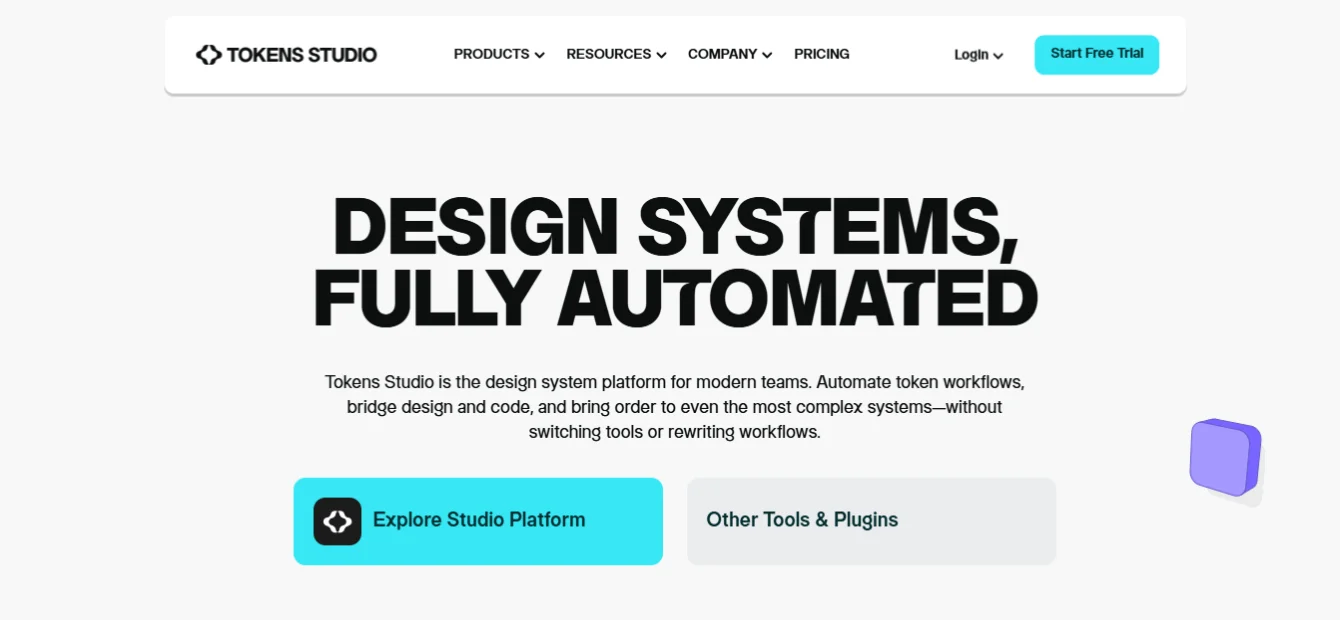
Design tokens are the connective tissue between a design system and a codebase. They are the named values – colors, spacing, typography, border radius – that define how a design system looks and behaves. Tokens Studio manages those values inside Figma and keeps them synchronized with the code your developers are building.
Without Tokens Studio, design token management is a manual, error-prone process. A designer updates a color in Figma, a developer has to be notified, and the code has to be updated separately. With Tokens Studio, the token values live in one place – a JSON file stored in GitHub, GitLab, or your preferred version control system – and both designers and developers pull from the same source of truth.
Key Features
- Manage all design tokens (color, spacing, typography, effects) inside Figma
- Sync tokens to GitHub, GitLab, Bitbucket, or Azure DevOps
- Multi-theme support for light mode, dark mode, and brand variations
- W3C Design Tokens spec compliant export
- Component-level token application with inheritance and overrides
Honest Assessment
Pros: Non-negotiable for any team maintaining a design system at scale. Eliminates a major source of design-code drift.
Cons: Steep learning curve for designers unfamiliar with token architecture. Setup time is significant upfront.
Beginner friendliness: Low to moderate. Best adopted with proper design system training.
7. Iconify – The Best Free Icon Plugin, Full Stop
| Category | Icons |
| Pricing | Free |
| AI Features | None – pure icon delivery |
| Best For | All web designers – this belongs in every installation |
| Free Tier | Fully free with no limitations |
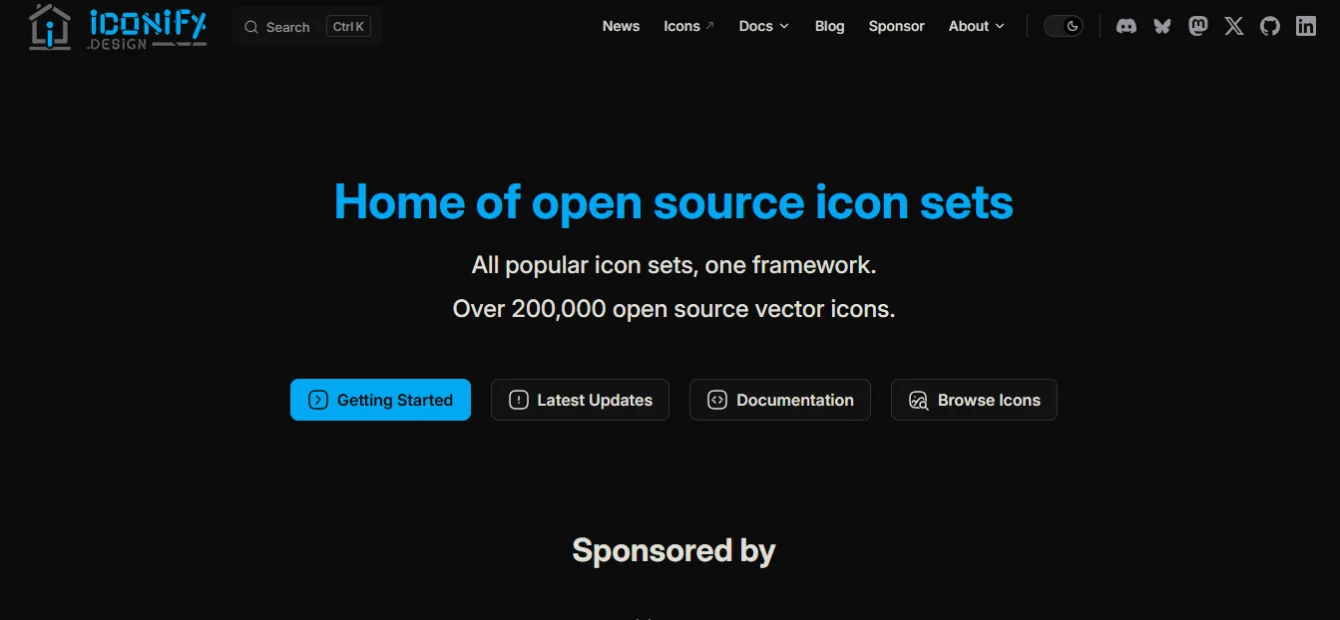
Iconify gives you access to over 150,000 icons from more than 100 icon sets. These include Material Design, Heroicons, Phosphor, Feather, Tabler, Font Awesome, and dozens more. All of this is available through a single search interface directly inside Figma. If you have ever lost fifteen minutes hunting for the right icon across multiple websites, Iconify eliminates that entirely.
The icons are inserted as vector SVG components, meaning they scale perfectly at any size, inherit your color styles, and work cleanly with Figma’s component system. You can also filter by icon set if you need stylistic consistency across your project.
Key Features
- 150,000+ icons from 100+ open-source icon sets
- SVG vector quality – infinitely scalable, color-editable
- Filter by icon set for consistent visual style
- Fast keyword search with instant preview
- Completely free with no subscription or credit system
Honest Assessment
Pros: The single best free plugin available for web designers. Saves time on every project without exception.
Cons: Icon quality varies significantly across sets. Always preview before committing to a set for a project.
Beginner friendliness: Excellent. Simple search interface with no setup required.
8. Content Reel – Realistic Prototypes in Seconds
| Category | Content & Data Generation |
| Pricing | Free |
| AI Features | None – uses curated data sets |
| Best For | Freelancers and agencies needing presentation-ready mockups |
| Free Tier | Fully free |
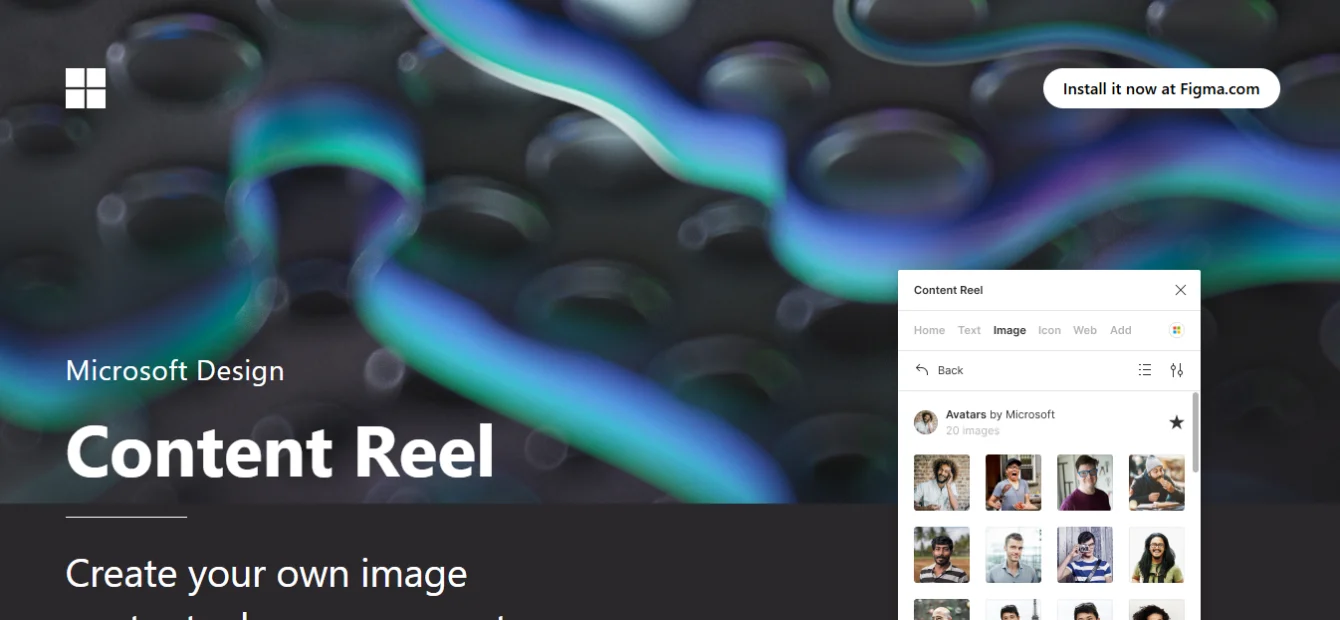
Content Reel addresses a common design issue: unrealistic placeholder content. It lets you quickly fill designs with real-looking names, images, contact details, and product data, making mockups feel complete instead of like wireframes.
For client presentations and stakeholder reviews, realistic content helps keep feedback focused on layout and functionality rather than placeholder text, improving the overall quality of discussions.
Key Features
- Pre-built content sets: names, avatars, addresses, companies, products
- Apply across multiple layers simultaneously with one action
- Custom content sets for project-specific data
- Import external data for highly customized population
Honest Assessment
Pros: Free, fast, and immediately improves every presentation you make. One of the highest ROI free plugins.
Cons: Limited customization in the free version. Some data sets are US-centric.
Beginner friendliness: Excellent. Drag, select, apply – done.
9. Unsplash – Professional Stock Photography, Free
| Category | Stock Photography |
| Pricing | Free |
| AI Features | None |
| Best For | Web designers building marketing sites, landing pages, and hero sections |
| Free Tier | Fully free – all photos licensed for commercial use |
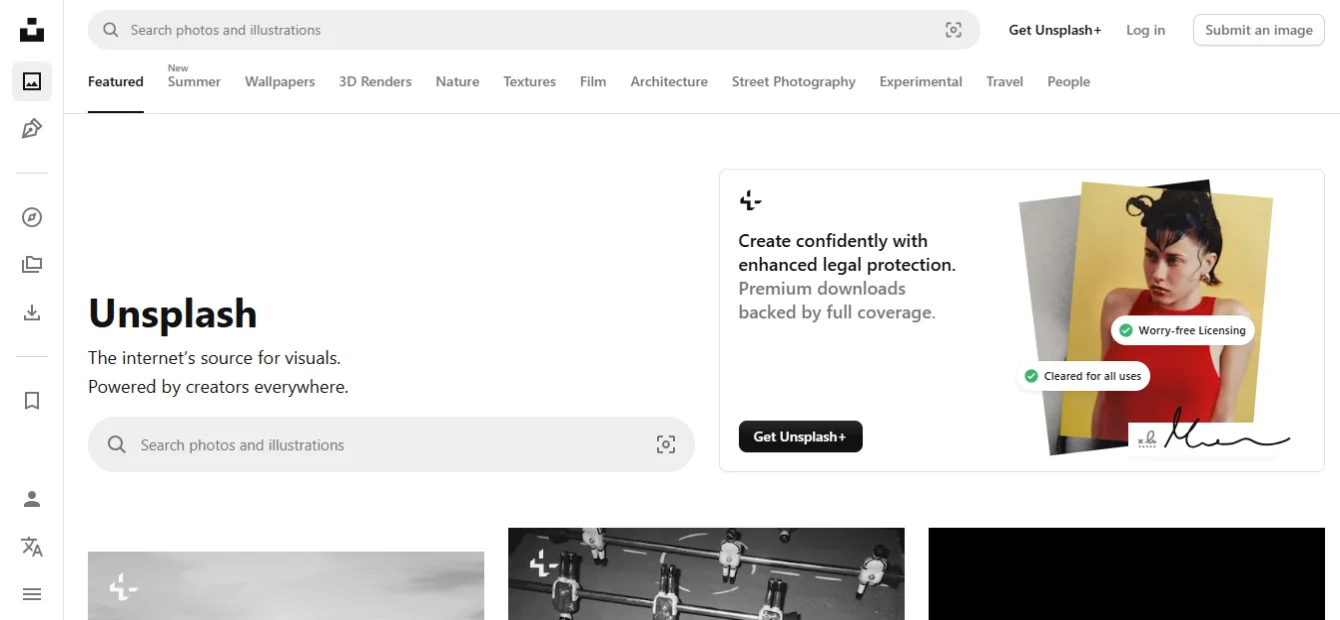
Unsplash delivers royalty-free professional photography directly into your Figma workspace without requiring you to open a browser, download a file, or manage licensing. Search for a keyword, select an image, and it drops directly onto your canvas in the correct dimensions.
For web designers working on marketing websites, hero sections, about pages, and blog layouts, Unsplash photographs look professional enough to serve as final production assets in many cases. The image quality is consistently high, and the licensing is straightforward – all images are free for commercial use.
Key Features
- Search and insert from millions of high-resolution Unsplash photographs
- Images inserted directly to canvas at selected frame dimensions
- All images licensed free for commercial use
- Consistent quality that works for production-level mockups
Honest Assessment
Pros: Eliminates the browser-download-upload cycle for stock photos. Reliable quality and licensing.
Cons: Repetitive imagery. Popular keywords yield the same photos you have seen on hundreds of other websites.
Beginner friendliness: Excellent. Simple keyword search interface.
10. Anima – Best Design-to-Code for Agency Teams
| Category | Design-to-Code / Developer Handoff |
| Pricing | Freemium – paid plans from approximately $39/month per team |
| AI Features | AI component recognition, responsive code generation |
| Best For | Agencies and product teams with active developer collaboration |
| Free Tier | Yes – limited exports and projects |
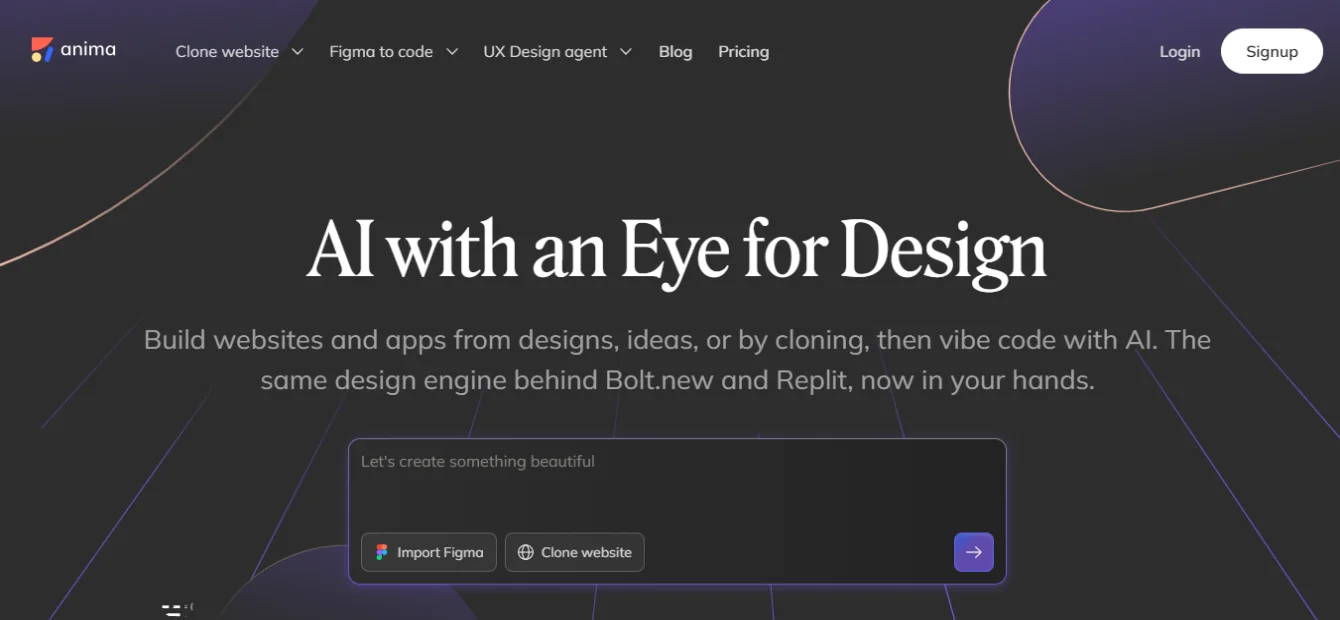
Anima converts Figma designs into production-ready HTML, CSS, and React code with a focus on clean, maintainable output. Unlike basic design-to-code tools that generate messy markup, it follows best practices like structured class naming and proper component organization.
Its key 2026 advantage is AI-powered component recognition, which identifies UI elements such as buttons, cards, navigation bars, and forms inside Figma layers and converts them into reusable code components instead of inline code. This results in more scalable, developer-friendly code that is easier to maintain and integrate into real projects.
Key Features
- Export responsive HTML, CSS, React, and styled-components
- AI component recognition for clean, maintainable code output
- Prototype mode for sharing interactive designs with stakeholders
- Developer-mode inspection with real code values alongside design specs
- Supports multiple CSS frameworks including Tailwind
Honest Assessment
Pros: Better code quality than most competing tools. Genuinely useful for real projects when files are organized well.
Cons: Pricing is higher than some alternatives. Code quality degrades with messy Figma file structure.
Beginner friendliness: Moderate. Best results come with an understanding of basic HTML/CSS structure.
11. LottieFiles – The Standard for Web Animation
| Category | Animations |
| Pricing | Freemium – free tier available, paid plans for advanced features |
| AI Features | None currently |
| Best For | Web designers adding micro-animations, loaders, and interactive states |
| Free Tier | Yes – functional for most individual use cases |
Lottie is a JSON-based animation format that enables lightweight, high-quality vector animations in web apps. The LottieFiles Figma plugin lets you browse animations, preview them in context, and export Figma designs as ready-to-use Lottie files.
It’s commonly used for micro-interactions, loading states, success animations, and animated illustrations where CSS isn’t enough – like a checkmark drawing itself or a looping empty-state illustration that enhances user experience.
Key Features
- Browse and insert animations from the LottieFiles public library
- Export Figma designs as Lottie JSON animations
- Preview animations directly on your canvas
- Ultra-lightweight file format optimized for web performance
- Pixel-perfect import of Figma designs into the Jitter animation tool
Honest Assessment
Pros: Industry standard for web animations. Excellent free library. Small file sizes that won’t hurt page load times.
Cons: Creating custom animations requires additional tooling. Not all Figma animations export perfectly.
Beginner friendliness: Good for consuming library animations. More complex for creating custom ones.
12. Autoflow – Fast User Flow Documentation
| Category | User Flows / UX Documentation |
| Pricing | Free |
| AI Features | None |
| Best For | UX designers, freelancers presenting user journeys to clients |
| Free Tier | Fully free |
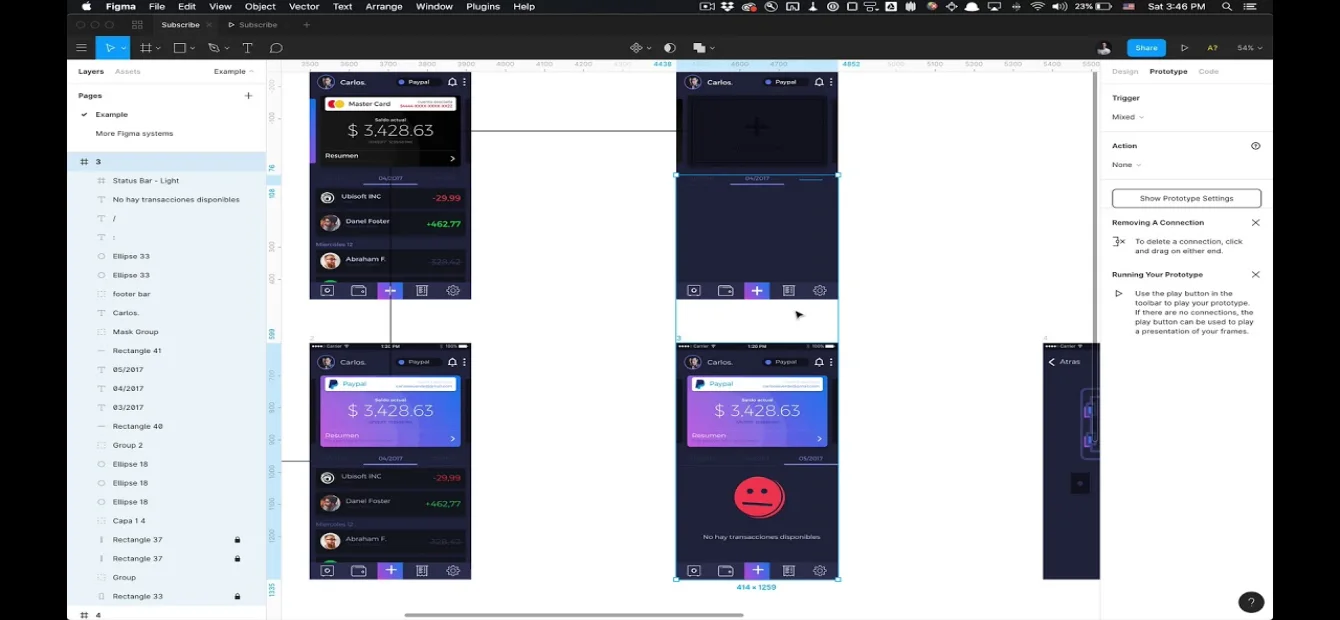
Autoflow draws connection arrows between Figma frames automatically. Select two frames, run the plugin, and it drops a clean directional arrow connecting them. For user flow diagrams, journey maps, and sitemap documentation, this turns a multi-hour manual task into a two-minute exercise.
The plugin is genuinely indispensable for client presentations that require showing how screens connect, and for team documentation where everyone needs to understand the intended user path. Arrows can be styled and the plugin supports multiple arrow types for different interaction categories.
Key Features
- Auto-generate arrows between selected Figma frames
- Multiple arrow styles for different interaction types
- Works across pages within the same Figma file
- Zero setup – select frames, run plugin, arrows appear
Honest Assessment
Pros: Free and does exactly one thing perfectly. Saves enormous time on user flow documentation.
Cons: Limited to arrow generation. Does not produce full flow charts or interaction documentation on its own.
Beginner friendliness: Excellent. No configuration needed.
13. Figma to Code – Free Design-to-Code for Freelancers
| Category | Design-to-Code |
| Pricing | Free |
| AI Features | None |
| Best For | Freelancers, WordPress designers, developers extracting clean HTML/CSS |
| Free Tier | Fully free |
Figma to Code converts Figma designs into code like HTML with Tailwind CSS, plain HTML/CSS, SwiftUI, or Flutter. It’s a useful free option for freelancers who don’t want paid tools like Anima or Builder.io, and for WordPress designers who need clean structural markup from their Figma files.
The generated code isn’t fully production-ready, so it still needs review and editing. However, it gives developers a strong starting point by capturing layout structure, spacing, and component hierarchy much better than manually translating designs.
Key Features
- Export to HTML/Tailwind, HTML/CSS, React (JSX), Flutter, and SwiftUI
- Follows design and programming best practices in generated code
- Responsive layout preservation from Figma auto-layout
- Free with no usage limits or subscription requirements
Honest Assessment
Pros: Best free design-to-code option available. Tailwind output is particularly clean.
Cons: Less polished than paid alternatives. Complex components may need significant developer rework.
Beginner friendliness: Good for designers with basic HTML knowledge.
14. Spline – 3D Design for Modern Web Experiences
| Category | 3D Design |
| Pricing | Freemium – free tier available, paid plans for advanced use |
| AI Features | AI-assisted 3D model generation (beta features) |
| Best For | Web designers building premium brand sites with scroll-based 3D effects |
| Free Tier | Yes – functional for basic 3D work |
3D design elements have gone mainstream on premium websites in 2025 and 2026. Brands like Apple, Stripe, Linear, and other top SaaS companies now use scroll-triggered 3D objects as part of their core website experience. Spline lets you create these 3D scenes and embed them directly into Figma mockups for more realistic design presentations.
The Figma plugin allows you to insert live Spline scenes directly into your design files. When you present to clients or stakeholders, they can see how the 3D element will behave in the browser. This includes parallax motion, hover effects, and scroll-triggered interactions. All of this is visible directly inside Figma without ever leaving the file.
Key Features
- Create 3D objects, scenes, and scroll animations inside Spline
- Embed interactive 3D previews directly in Figma files
- Generate web-ready code for direct implementation
- Physics simulations for interactive 3D product mockups
Honest Assessment
Pros: Transforms client presentations. 3D web experiences that used to require specialist developers are now accessible to designers.
Cons: Learning curve for 3D design concepts. Performance tuning for web requires developer collaboration.
Beginner friendliness: Low to moderate. Familiarity with 3D concepts helps significantly.
15. Coolors – Smart Color Palette Generation
| Category | Color Tools |
| Pricing | Free |
| AI Features | None – algorithmic color harmony generation |
| Best For | Web designers building brand color systems and UI color themes |
| Free Tier | Fully free |
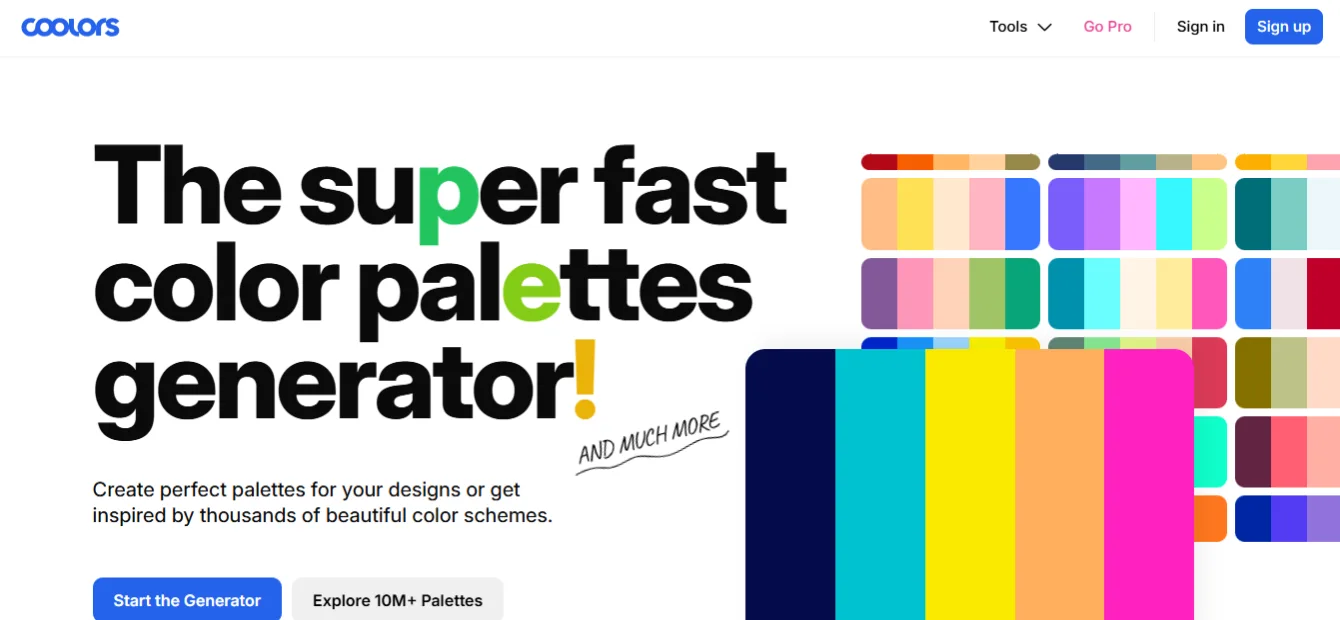
Color selection is one of the most time-consuming early-stage design decisions. Coolors generates harmonious color palettes from a seed color, allows you to explore and lock specific colors while regenerating others, and pushes the final palette directly into your Figma project as named color styles.
The workflow is particularly useful when a client provides a single brand color and asks you to develop a complete UI color system. Coolors instantly creates color palettes (complementary, analogous, triadic, etc.) and syncs them directly into Figma as organized, reusable color styles for your design system.
Key Features
- Generate palettes from a seed color with one keypress
- Lock individual colors while exploring alternatives
- Export palettes directly as Figma color styles
- Access to a library of community-shared color palettes
Honest Assessment
Pros: Fast, free, and produces aesthetically sound palettes. Direct Figma integration saves manual color setup time.
Cons: No AI – pure algorithmic generation. Some palette suggestions need refinement for UI use.
Beginner friendliness: Excellent. Visual interface makes color exploration accessible to all experience levels.
16. Design Lint – Automated Quality Control
| Category | Productivity / Quality Control |
| Pricing | Free |
| AI Features | None |
| Best For | All designers – pre-delivery file quality checks |
| Free Tier | Fully free |
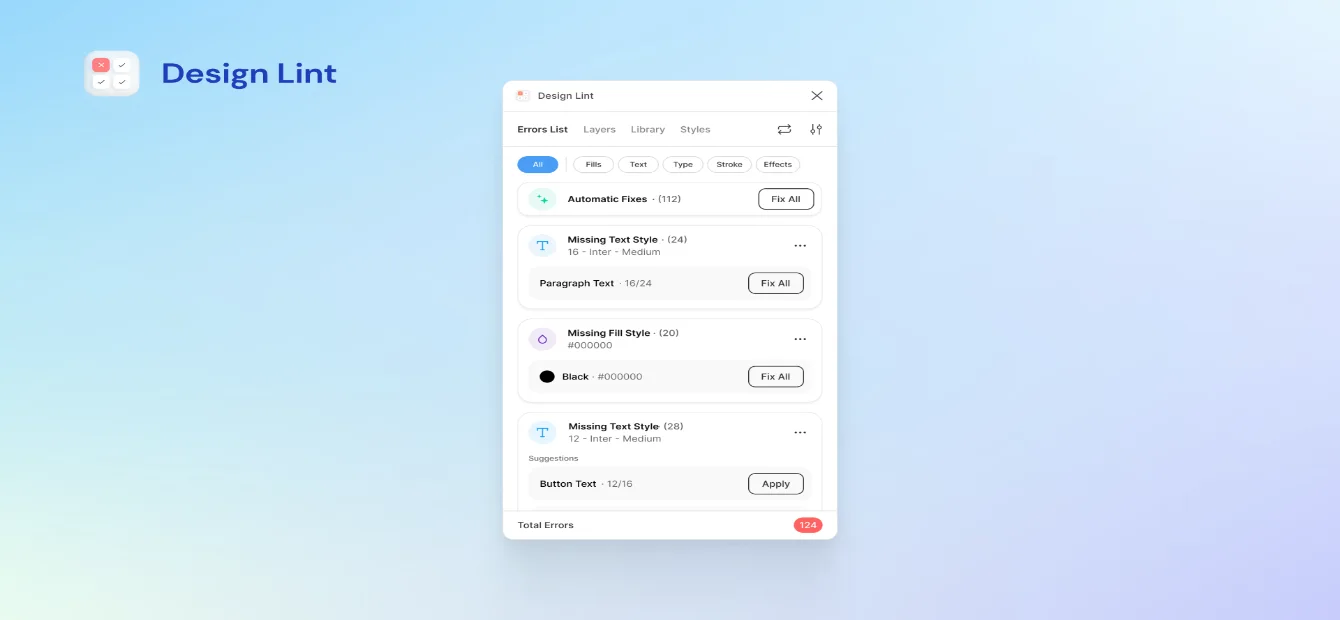
Design Lint scans your Figma files for design inconsistencies such as missing text styles, unlinked color fills, incorrect spacing values, and broken component overrides. It presents these issues in a clear checklist so you can quickly fix them before sharing files with developers or clients, ensuring design consistency and preventing avoidable errors like duplicate shades or manual styling mistakes.
Key Features
- Scan for fill, stroke, text, effect, and grid style inconsistencies
- Identifies components with detached or missing styles
- Clickable issue list that navigates directly to the problem layer
- Free with no usage limitations
Honest Assessment
Pros: Free, fast, and catches mistakes before they become handoff problems. Should be a standard part of every pre-delivery checklist.
Cons: Does not auto-fix issues – it identifies them, but corrections are manual.
Beginner friendliness: Good. Clear issue descriptions help beginners understand why consistency matters.
17. Mockuuups Studio – Professional Device Mockups
| Category | Mockups |
| Pricing | Freemium – paid plan at approximately $7.99/month |
| AI Features | None |
| Best For | Freelancers and agencies presenting web designs to clients |
| Free Tier | Yes – limited mockup selection |
Mockuuups Studio inserts your Figma designs into photorealistic device mockups – MacBooks, iPhones, iPads, Android phones, and desktop monitors without leaving Figma. For client presentations and portfolio work, mockup quality is a direct proxy for perceived professionalism.
The paid library includes over 500 mockup scenes with varied backgrounds, angles, and lighting conditions. The plugin auto-updates when you change your design, so the mockup view always reflects your current iteration. This makes it practical for ongoing client reviews, not just final presentation slides.
Key Features
- 500+ device mockup scenes across desktop, tablet, and mobile
- Live updates when underlying design changes
- High-resolution exports for presentations and portfolios
- Multiple environment styles: flat lay, lifestyle, studio, isometric
Honest Assessment
Pros: Immediate visual upgrade for client presentations. Live updates save time across revision rounds.
Cons: Best mockup variety requires the paid plan. Free selection is limited but still useful.
Beginner friendliness: Excellent. Select mockup, insert design, export.
18. ProtoPie Connect – High-Fidelity Interactive Prototypes
| Category | Prototyping |
| Pricing | Freemium – free tier for basic prototyping, paid plans for advanced features |
| AI Features | None |
| Best For | Product designers and SaaS teams needing complex, interactive prototypes |
| Free Tier | Yes – limited interactions and sharing |
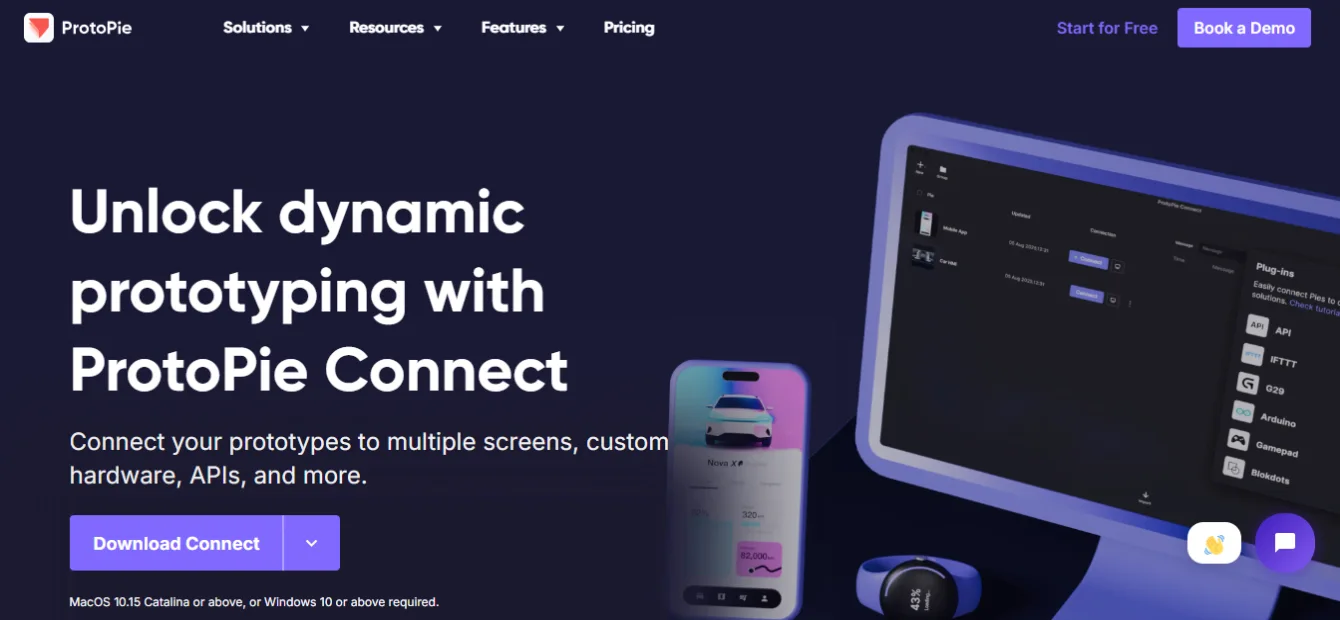
Figma’s native prototyping is great for basic interactions, but ProtoPie is used when more advanced logic is required. Its plugin syncs Figma designs into ProtoPie’s engine, enabling conditional logic, sensor inputs, multi-device interactions, and precise control over transitions that Figma alone cannot handle.
This makes it especially useful for high-fidelity user testing and developer handoff, where realistic interactions, timing, and behavior need to be communicated clearly.
Key Features
- Import Figma designs directly into ProtoPie with pixel-perfect fidelity
- Conditional logic, variables, and formulas for complex interactions
- Multi-device and sensor-based prototyping capabilities
- Shareable prototype links for user testing and stakeholder review
Honest Assessment
Pros: Unmatched interaction complexity. Prototypes that developers use as direct specifications for implementation timing.
Cons: Requires learning ProtoPie’s interaction paradigm. Overkill for simple web design projects.
Beginner friendliness: Low. Best suited to experienced product designers with prototyping backgrounds.
19. Google Sheets Sync – Client-Driven Content Management
| Category | Productivity / Content |
| Pricing | Free |
| AI Features | None |
| Best For | Freelancers and agencies where clients manage their own content |
| Free Tier | Fully free |
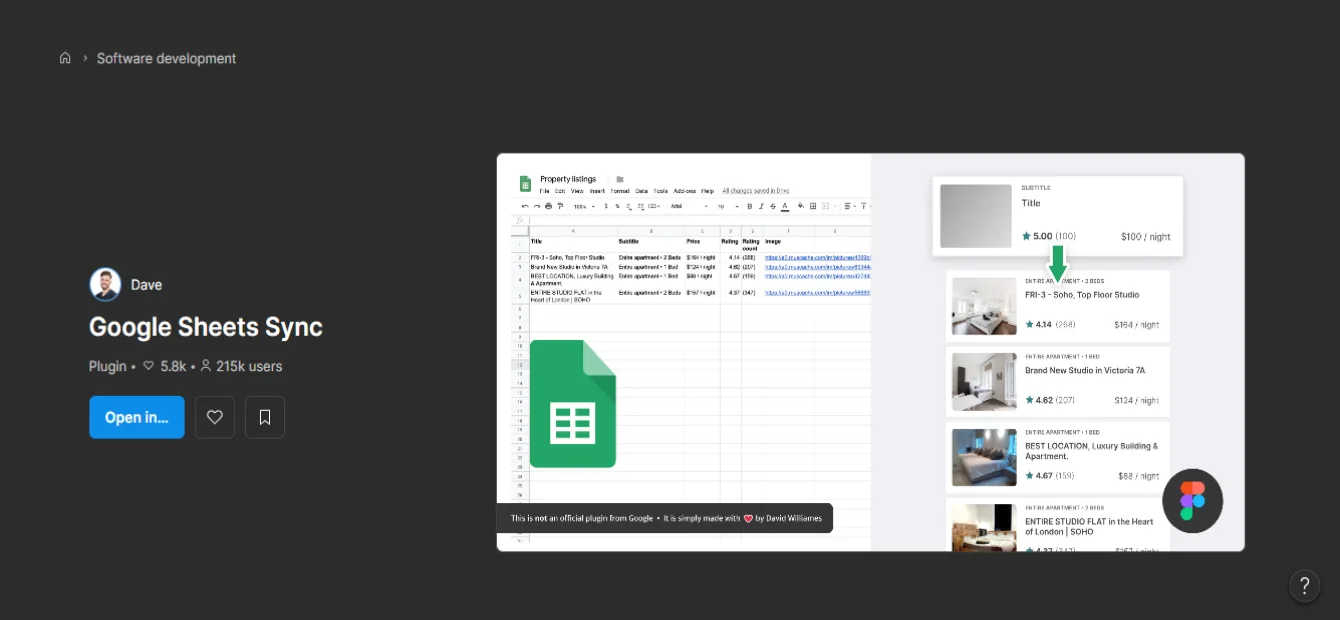
Google Sheets Sync connects Figma designs directly to a Google Sheets file, allowing content updates in the spreadsheet to automatically reflect in the design after syncing.
It is especially useful for content-heavy projects like team pages, product listings, pricing tables, and event schedules. Instead of repeatedly exchanging emails or manually updating text, clients can simply update a shared sheet.
For agencies, this creates a streamlined workflow: provide clients with a structured spreadsheet, let them input content, and sync it back into Figma. This keeps designs accurate and reduces the need for manual edits across multiple components.
Key Features
- Sync text and image URL data from Google Sheets to Figma layers
- Map spreadsheet columns to specific Figma layer names
- Batch update designs with new content in a single sync action
- Fully free with no subscription required
Honest Assessment
Pros: Solves a specific client collaboration problem elegantly and for free.
Cons: Requires disciplined Figma layer naming to work correctly. Setup time per project.
Beginner friendliness: Moderate. Works best with a systematic naming convention already in place.
20. Blush – Customizable Illustrations for Web Design
| Category | Illustrations |
| Pricing | Freemium – free tier available, paid plan at approximately $7/month |
| AI Features | None |
| Best For | Web designers building onboarding flows, empty states, and marketing landing pages |
| Free Tier | Yes – access to select illustration collections |
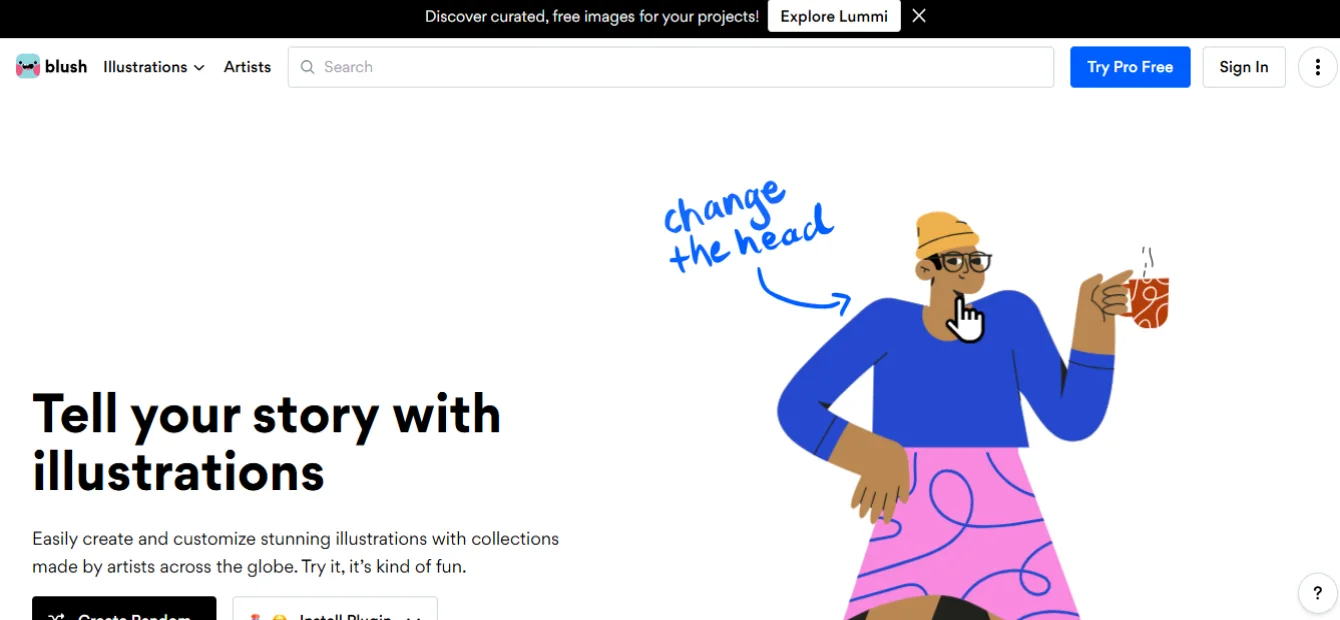
Generic stock illustrations can make websites feel repetitive and unoriginal. Blush offers curated illustration collections with customizable characters, poses, accessories, skin tones, and brand colors that integrate directly into Figma.
For SaaS onboarding, empty states, error pages, and landing pages, these semi-custom illustrations help create a unique visual identity without the cost of fully custom artwork. They offer a balanced solution between generic assets and expensive custom illustration commissions.
Key Features
- Curated illustration sets across multiple artistic styles
- Customizable character traits, poses, and accessories
- Color adjustment to match brand guidelines
- Direct insertion into Figma as editable vector layers
Honest Assessment
Pros: Significantly more brand-aligned than generic stock illustration sites. Distinctive visual quality at an affordable price.
Cons: Style variety is limited compared to full stock illustration libraries. Best collection access requires the paid plan.
Beginner friendliness: Excellent. Visual customization interface requires no design expertise.
Best AI-Powered Figma Plugins in 2026
AI-powered Figma plugins have evolved from experimental tools into essential parts of modern design workflows. Today, they are mainly used to accelerate early-stage work, improve consistency, and reduce repetitive tasks – while still leaving critical design decisions to humans.
How AI Plugins Save Time
• Wireframe generation
Tools like UXPilot can turn a simple brief into functional wireframes in minutes. What usually takes 2–4 hours manually can now be produced in under 10 minutes, allowing designers to focus on refinement and decision-making instead of initial setup.
• Copy generation
Plugins such as Magician help populate UI components with relevant UX copy before client review. This results in more realistic prototypes and faster, higher-quality feedback.
• Accessibility checks
Stark can automatically generate alt text and check color contrast across entire screens in seconds, significantly reducing manual accessibility work while improving WCAG compliance.
• Code export
Tools like Builder.io and Anima convert Figma designs into usable code structures (React, HTML, CSS, etc.), helping developers start with a strong foundation instead of rebuilding layouts from scratch.
Real-World AI Workflow Example
A typical SaaS landing page redesign workflow in 2026 might look like this:
- Generate sitemap and wireframes using Relume (≈10 minutes)
- Populate UI with UX copy using Magician (≈5 minutes)
- Run accessibility checks using Stark (≈2 minutes)
- Refine design with branding and UX decisions (3-5 hours)
- Export production-ready code via Builder.io (≈15 minutes)
When to Use AI vs Manual Design
Use AI: Ideation phases, generating structural starting points, populating realistic content, checking for accessibility issues, and exporting code for developer handoff.
Stay manual: Brand application, custom illustration work, complex interaction design, final polish and quality assurance, and any deliverable where visual distinctiveness matters to the client outcome.
Best Free Figma Plugins Worth Installing
Paid plugins are worth the investment when they save more time than they cost. Free plugins require no such calculation. These are the free Figma tools that provide genuine professional value without any subscription requirement.
Iconify: 150,000+ icons from 100+ sets. There is no free plugin that saves more time per week.
Content Reel: Realistic mockup content in seconds. Eliminates Lorem ipsum from client presentations.
Unsplash: Professional photography licensed for commercial use, inserted directly into your canvas.
Autoflow: User flow arrows between frames in two clicks. Essential for UX documentation.
Design Lint: Pre-delivery file quality scanning. Catches inconsistencies before they become handoff problems.
Figma to Code: Free design-to-code export for freelancers who need HTML, Tailwind, or React without a subscription.
Coolors: Harmonious color palette generation with direct Figma style export.
Google Sheets Sync: Client-managed content pipeline. Useful on every content-heavy project.
These eight free plugins cover icons, content, photography, user flows, quality control, code export, color, and client content management. They represent a complete professional toolkit at zero cost.
Best Figma Plugins by Use Case
The right plugin depends entirely on what you are building and how you work. Use this reference to find the best option for your specific situation.
| Use Case | Best Plugin | Why It Wins |
| Beginners | Magician | Zero setup, instant value, no learning curve |
| Web Designers | Relume | AI site builder + 1,000+ production-ready components |
| Agencies | Builder.io | Reliable design-to-code, scales across projects |
| WordPress Designers | Figma to Code + Anima | Export clean HTML/CSS that maps to WP blocks |
| Best AI Plugin | UXPilot (Nodey) | Full screen generation, heatmaps, prompt-to-flow |
| Best Free Plugin | Iconify | 10k+ icons, zero friction, works with every workflow |
| Design-to-Code | Anima | Production-quality React/HTML, component mapping |
| Accessibility | Stark | WCAG checker, color blind simulator, AI alt-text |
| Design Systems | Tokens Studio | Token sync across design + code, no manual drift |
| SaaS Designers | Tokens Studio + Stark | Scale consistency and compliance simultaneously |
| Freelancers | Relume + Content Reel | Speed of delivery is the competitive advantage |
| Product Designers | UXPilot + Design Lint | AI-generated flows + automated quality checks |
Mistakes to Avoid When Using Too Many Figma Plugins
Plugin overload can slow down your workflow, clutter your workspace, and reduce focus. The goal is not more plugins, but the right ones used correctly.
1. Installing unused plugins
Avoid installing plugins just because they are popular. Every unused plugin adds mental clutter. Install only when you actually need it.
2. Misusing AI plugins
AI wireframing tools are best for quick structure and ideation. Using them for high-end or premium design work can make outputs feel generic and limit creativity.
3. Treating design-to-code as final output
Tools like Builder.io, Anima, and Figma-to-Code generate starting code, not production-ready code. Developers still need to refine structure, responsiveness, and edge cases.
4. Skipping accessibility checks
Tools like Stark take minutes but save hours later. Ignoring accessibility early leads to costly fixes after development.
5. Ignoring freemium limits
Many plugins restrict free usage with credit caps or feature locks. Always check limits before integrating them into real workflows.
6. Poor Figma file structure
Plugins work best with clean files. Proper naming, styles, and components directly improve AI, token, and export outputs. Messy files = messy results.
Frequently Asked Questions (FAQs)
Q: What’s the difference between a plugin and extension?
They’re mostly used interchangeably. Plugins run inside Figma; extensions usually refer to browser or third-party tools connected to Figma.
Q: Are AI plugins free?
Mostly freemium. Some offer free credits (like UXPilot), others require paid plans for full use (Builder.io, Anima, etc.).
Q: Do plugins slow Figma down?
Not directly. But heavy insertions (large components, images, data) can increase file size and complexity.
Q: Can plugins generate production-ready code?
No. They generate usable starting code, but developers must refine it for production.
Q: Best plugins for WordPress designers?
Figma-to-Code, Anima, Mockuuups Studio, Content Reel, and Google Sheets Sync.
Q: Best free plugins for beginners?
Iconify, Content Reel, Unsplash, Autoflow, and Stark.
Q: Magician vs UXPilot?
Magician = content inside designs (icons, copy, placeholders).
UXPilot = full screens and wireframes from prompts.
Q: How many plugins should I use?
Ideally 5–8 active plugins. Add only when needed and remove unused ones monthly.
Q: Can I use plugins on free Figma plan?
Yes, plugins work on free plan. Some plugins may have their own paid tiers.
Q: Most used plugins in agencies (2026)?
Stark, Tokens Studio, Relume, Builder.io/Anima, Content Reel, Autoflow.
Q: Best for SaaS product design?
Tokens Studio, UXPilot, ProtoPie Connect, Stark, Design Lint.
Q: What happened to Galileo AI?
It was integrated into Google Stitch in 2025. UXPilot is now a strong Figma-native alternative.
Conclusion: What to Install First
Beginners
Start simple:
- Iconify
- Content Reel
- Stark
- Autoflow
Freelancers (Web Projects)
Add:
- Relume (wireframing)
- Unsplash (images)
- Mockuuups Studio (presentation)
- Figma to Code (handoff)
Agencies
Use scalable tools:
- Tokens Studio (design systems)
- Builder.io or Anima (handoff)
- Stark (accessibility compliance)
- UXPilot (AI flows)
SaaS/Product Designers
Focus on system + speed:
- Tokens Studio
- UXPilot
- ProtoPie Connect
- Design Lint