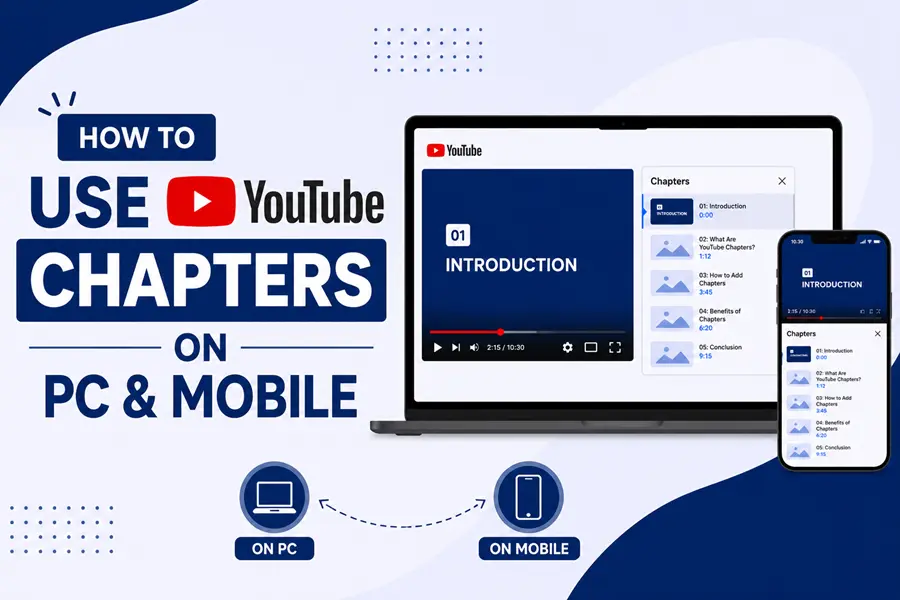
Quick answer: To use YouTube chapters, open YouTube Studio, click your video, and in the Description add a list of timestamps and titles. Start the first one at 0:00, list at least three in time order, and keep each chapter at least 10 seconds long. Save the video, and YouTube turns those timestamps into clickable chapters on the progress bar. You can do this on a PC browser or in the YouTube Studio mobile app.
YouTube chapters are one of the simplest wins on the whole platform. They take about five minutes to set up. They make your videos easier to watch. And in 2026, they also help your videos show up in Google Search and inside AI tools like Gemini.
This guide by web design Los Angeles team shows you exactly how to use YouTube chapters on PC and mobile. You will learn how to add them by hand, how to let YouTube add them for you, how viewers jump between them, and how to write chapter titles that bring in more views. Let’s start with the basics.
What Are YouTube Chapters?
YouTube chapters break a single video into labeled sections. Each section has its own title and its own preview. When a creator adds chapters, viewers see small dividers on the red progress bar at the bottom of the player. Hover or tap on one, and the chapter title pops up.
Think of a long recipe video. Instead of one 20-minute block, chapters might read:
- 0:00 Intro
- 1:30 Ingredients you need
- 4:15 Making the dough
- 9:40 Baking time and temperature
- 14:00 Final taste test
Now a viewer can jump straight to “Baking time and temperature” without dragging the scrubber and guessing. That is the whole point. Chapters turn a video into something people can scan, skip through, and rewatch with ease.
Chapters vs. timestamps: what’s the difference?
People mix these two terms up all the time, so let’s be clear.
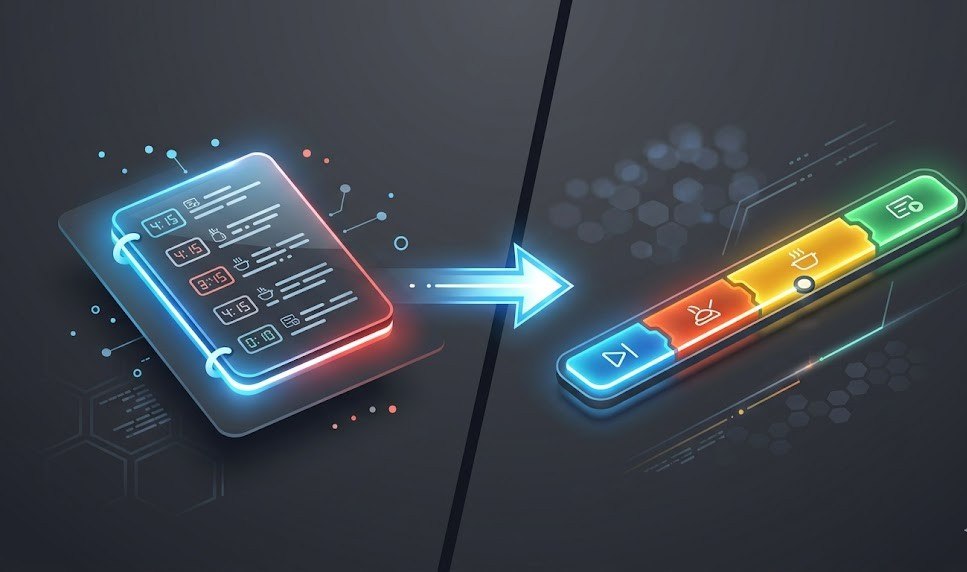
- Timestamps are the lines of text you type in the description, like 4:15 Making the dough.
- Chapters are what YouTube creates from those timestamps. They are the visible sections on the progress bar.
So timestamps are the input. Chapters are the result. You write timestamps; YouTube builds the chapters.
Also Read: Instagram Search Queries Optimization in 2026
Why Use YouTube Chapters? (Benefits That Actually Matter)

Before the how-to, here is why this small task is worth your time. Chapters help both your viewers and your reach.
| Benefit | What it does for you |
| Easier navigation | Viewers jump to the part they want, so they don’t bounce out of frustration. |
| Better watch time | When people find the right section fast, they tend to stay and watch more. |
| Higher discovery | Chapters can appear as “key moments” right inside Google Search results. |
| Stronger SEO signals | Chapter titles are crawlable text that tell Google and YouTube what each section covers similar to strong on-page SEO practices. |
| AI search visibility | In 2026, tools like Gemini read your chapter titles to understand your video’s topics. |
| A cleaner channel | Organized videos look more professional and build trust with new viewers. |
The discovery point is the big one. When your video has chapters, Google can pull a specific section into search results and link straight to that moment. That gives searchers a preview and a reason to click. Most creators never set this up, which means doing it puts you ahead of the pack.
The 3 Rules YouTube Requires (Memorize These)
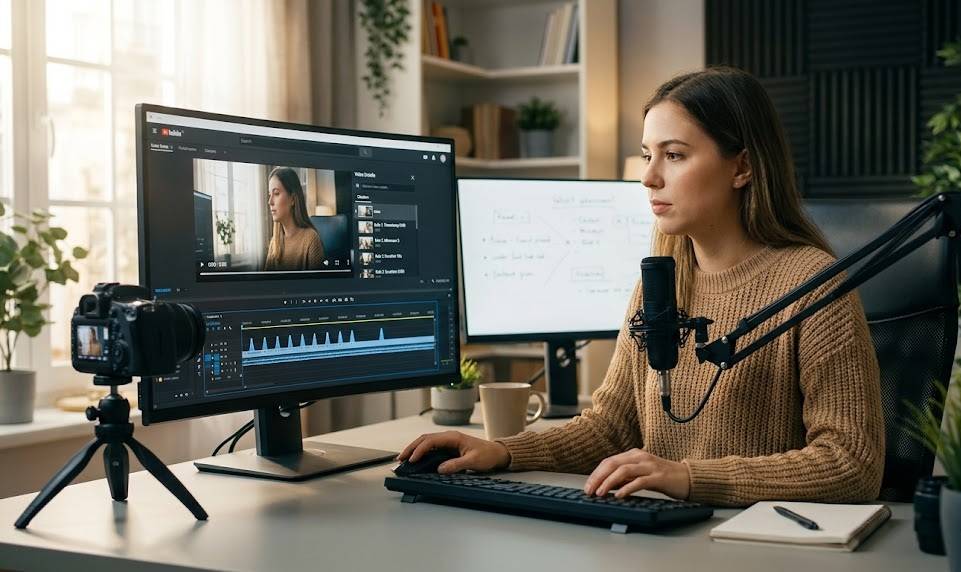
Here is how to make chapters in YouTube videos correctly. Chapters only appear if you follow three official rules. Break any one of them, and the whole list fails silently. No error message – they just won’t show.
The 3 rules:
- The first timestamp must be 0:00. This is what switches the feature on. Not 0:01, not 0:15 – it has to mark the very first second.
- You need at least three timestamps, listed in order from earliest to latest. Two is not enough.
- Each chapter must be at least 10 seconds long. If two timestamps sit closer than 10 seconds apart, YouTube rejects the entire list.
Keep these three in mind and you will avoid 90% of all chapter problems. Now let’s add them.
How To Use YouTube Chapters on PC (Step-by-Step)
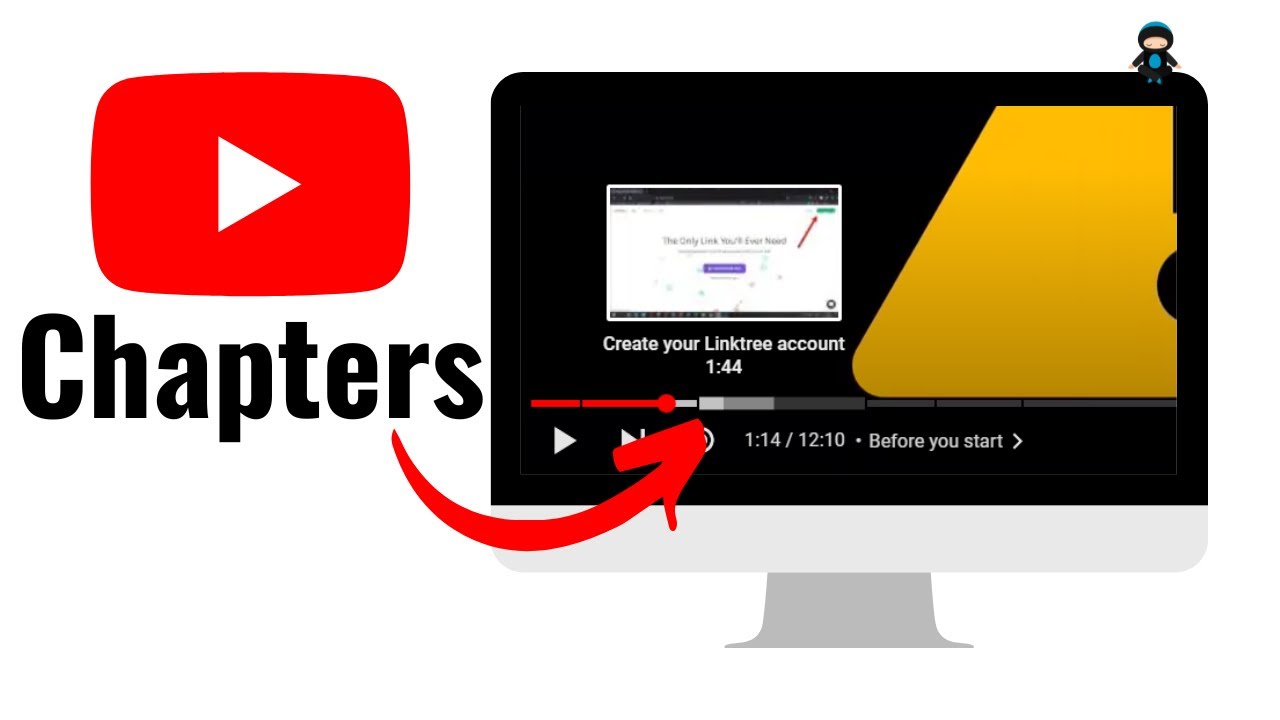
This is the desktop method using YouTube Studio in your browser. It is the most reliable way to add chapters, and it is where most creators work.
Here is how to put chapters in a YouTube video on a computer:
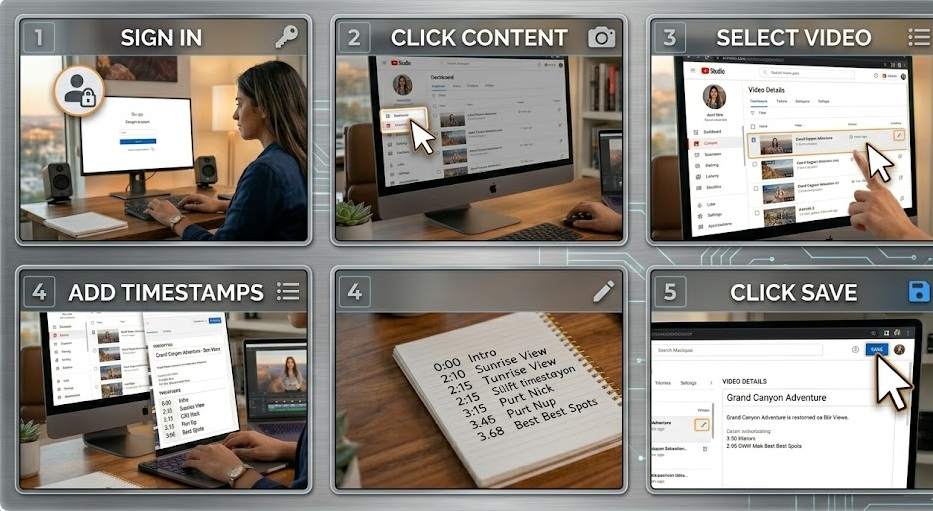
- Sign in to YouTube Studio at studio.youtube.com.
- From the left menu, click Content.
- Click the video you want to edit.
- Scroll to the Description box.
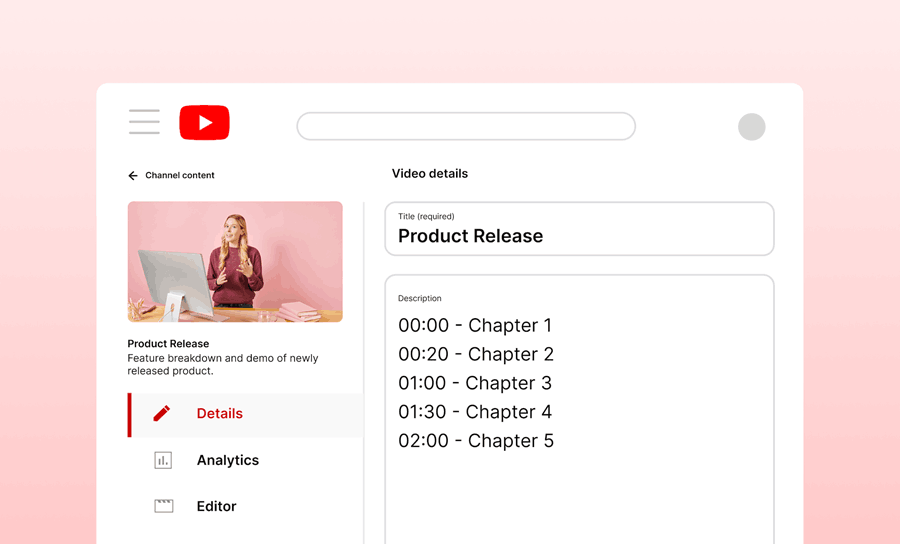
- Type your list of timestamps and titles. Put each one on its own line. Start with 0:00.
- Click Save in the top-right corner.
That’s it. Within a moment, your timestamps become clickable chapters on the player’s progress bar.
Your description might look like this:
0:00 Introduction
1:12 Setting up your account
3:45 Recording your first video
7:20 Editing tips
11:05 Uploading and publishing
A few things happen automatically once you save. The timestamps turn into clickable links inside the description. The progress bar gains small dividers. And a chapter list becomes available next to (or below) the video. You did not need to turn on any special setting – the 0:00 start did that for you.
This is also the answer to how do you make chapters on YouTube if you want full control. Manual chapters always override YouTube’s automatic ones, so what you type is exactly what viewers get.
Explore Now: Affordable SEO Tools & Software For All Businesses
How To Use YouTube Chapters on Mobile (Step-by-Step)
You don’t need a computer to do this. The free YouTube Studio app (a separate app from the regular YouTube app) lets you add chapters from your phone. This is perfect for editing on the go.
Here is how to make chapters in YouTube videos on mobile:
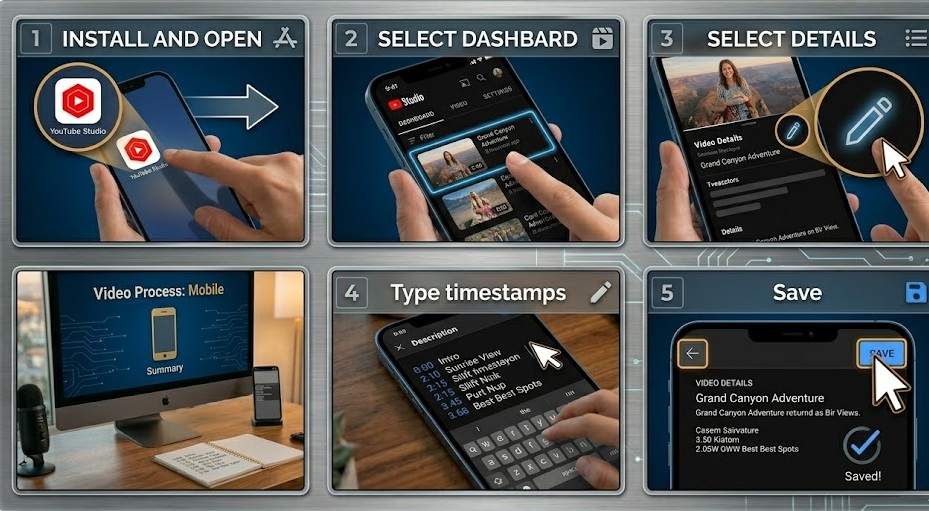
- Install and open the YouTube Studio app (iOS or Android).
- On the dashboard, tap the video you want to edit.
- Tap the pencil (edit) icon.
- Tap Description.
- Add your timestamps and titles, one per line, starting with 0:00 – the same format as on desktop.
- Tap the back arrow, then tap Save.
The rules are identical to the desktop version. The only difference is the screen you’re tapping on. Once saved, your phone-added chapters work exactly like ones added from a PC.
Tip: Typing precise timestamps on a small screen can be fiddly. Many creators rough out chapters on the app, then fine-tune the exact seconds later on desktop. Either way works.
Timestamp Formatting Rules (Get These Right)
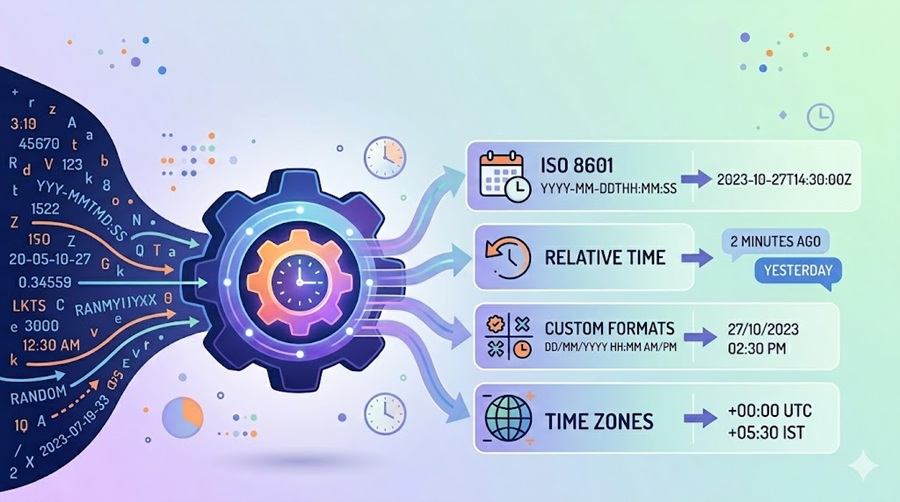
A single wrong character can stop your chapters from showing. This is the most common reason chapters fail. Use this table as your checklist.
| Rule | Correct | Wrong |
| Use a colon between minutes and seconds | 4:20 | 4.20, 4;20, 4m20s |
| Add a space after the timestamp | 4:20 Editing tips | 4:20Editing tips |
| Short videos (under 10 min) | m:ss → 4:20 | – |
| Medium videos (10–59 min) | mm:ss → 14:05 | – |
| Long videos (60 min+) | hh:mm:ss → 1:14:05 | – |
| Titles need 3+ characters | Intro | Hi |
| Keep all timestamps in one block | Listed together | Scattered through the description |
Two extra notes. First, a video can hold up to 50 chapters maximum, so very granular lists may get rejected. Second, avoid putting random timestamp-looking text elsewhere in your description, because it can confuse YouTube and break the chapter list.
How To Use Automatic Chapters (Let YouTube Do It)
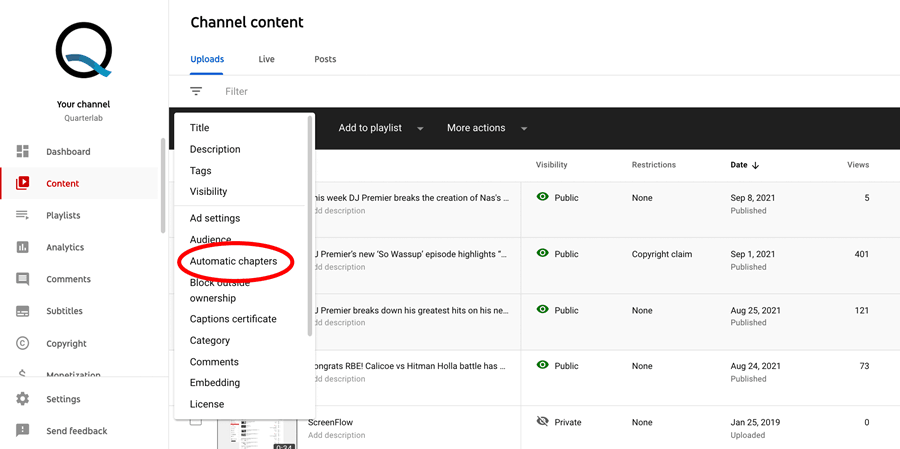
If you don’t want to type timestamps by hand, YouTube can generate chapters for you using AI. These are called automatic chapters and key moments.
To turn them on:
- Sign in to YouTube Studio.
- Click Content, then click your video.
- Click Show More.
- Under Automatic chapters, check “Allow automatic chapters and key moments.”
- Click Save.
For new uploads, this box is usually checked by default, so many videos get auto-chapters without you lifting a finger.
The honest catch: automatic chapters are a convenience, not a strategy. The AI doesn’t understand your video the way you do. It may split sections in odd places, miss key moments, or label them with generic phrasing. It works best on list-style videos with clear breaks.
My advice: treat automatic chapters as a rough first draft. Let YouTube suggest the breaks, then copy them into your description and rewrite the titles with your own words and keywords. The moment you add manual timestamps, they take over from the automatic ones. You get the time-saving of AI with the precision of human editing.
Note that not every video is eligible. If your channel has active strikes, or the content may be sensitive, the feature may not appear. Some accounts also need to apply for Advanced features before chapters become available.
Manual vs. Automatic Chapters: Which Should You Pick?
Here’s a side-by-side to help you decide.
| Factor | Manual chapters | Automatic chapters |
| Control | Full – you choose every title and time | Limited – AI decides |
| Accuracy | High | Hit or miss |
| SEO value | Strong (you pick keywords) | Weak (generic labels) |
| Speed | Takes a few minutes | Instant |
| Best for | Most videos, especially tutorials | A quick starting draft |
For anything you care about ranking, go manual. Automatic is fine for speed, but the titles rarely match what people actually search for.
How Viewers Use Chapters (PC and Mobile)
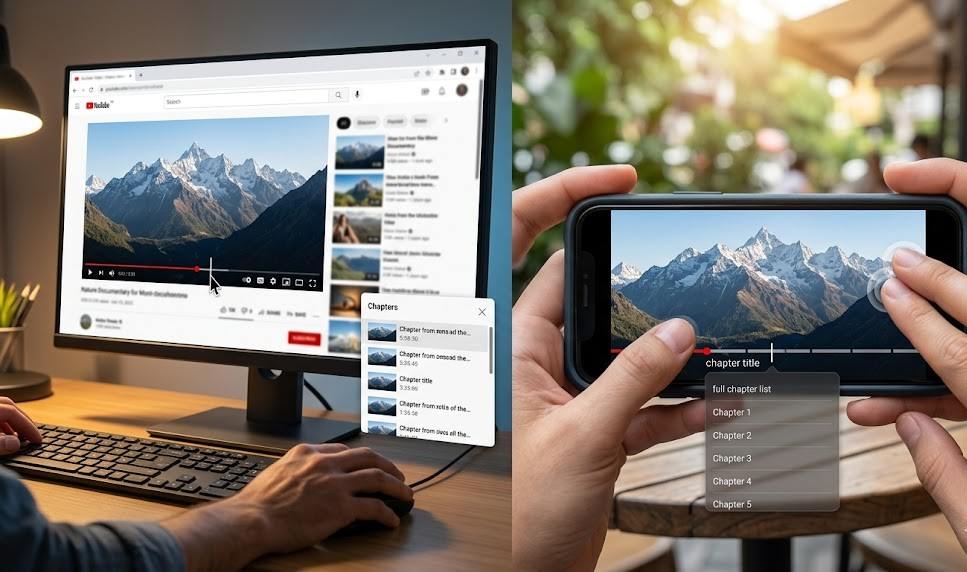
So far we’ve covered the creator’s side. But knowing how viewers experience chapters helps you build better ones. Here’s how to use YouTube chapters as a viewer.
On a PC:
- Hover over the red progress bar. You’ll see vertical lines marking each chapter, with the title appearing as you move across.
- Drag the scrubber (the red dot) to any chapter to jump there.
- Click a chapter title above the progress bar, or scroll to the bottom of the description, to see the full chapter list. The list opens beside the video.
On mobile:
- Tap the screen to bring up the progress bar.
- Chapters appear as segments. Tap the chapter title shown on the player to open the full list.
- In the YouTube app, you can double-tap with two fingers on the right or left side of the screen to skip to the next or previous chapter.
Designing for these behaviors matters. Since viewers often scan the chapter list before deciding to watch, clear and tempting titles can be the difference between a click and a scroll-away.
How To Write Chapter Titles That Bring In Views
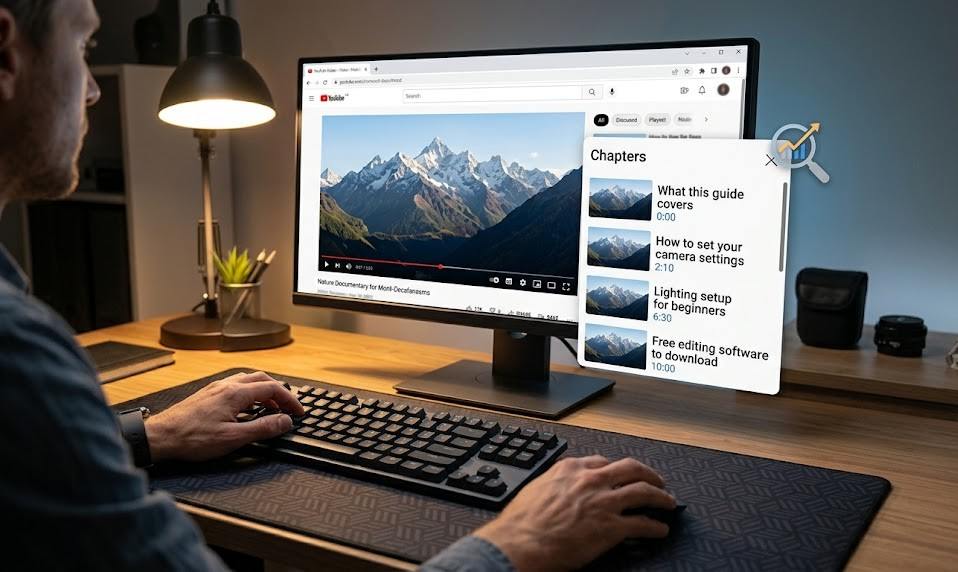
This is where most creators leave value on the table. Your chapter titles are not just labels – they are crawlable text and a micro-SEO opportunity. Each title is, in effect, a small secondary keyword target for your video.
Compare these two lists:
Weak (generic):
0:00 Intro
2:10 Part 1
6:30 Part 2
10:00 Next steps
Strong (descriptive):
0:00 What this guide covers
2:10 How to set your camera settings
6:30 Lighting setup for beginners
10:00 Free editing software to download
The second set works harder because each title contains phrases real people type into YouTube and Google. The first set tells search engines nothing.
Follow these habits when naming chapters:
- Describe what the viewer will learn, not where they are in the video.
- Include natural keywords, but never stuff them.
- Keep titles short and readable – a few words is plenty.
- Match the title to what’s actually said in that section. Mismatched titles hurt you.
That last point matters more than ever in 2026, which brings us to the AI angle.
YouTube Chapters and GEO: Showing Up in AI Search (2026)
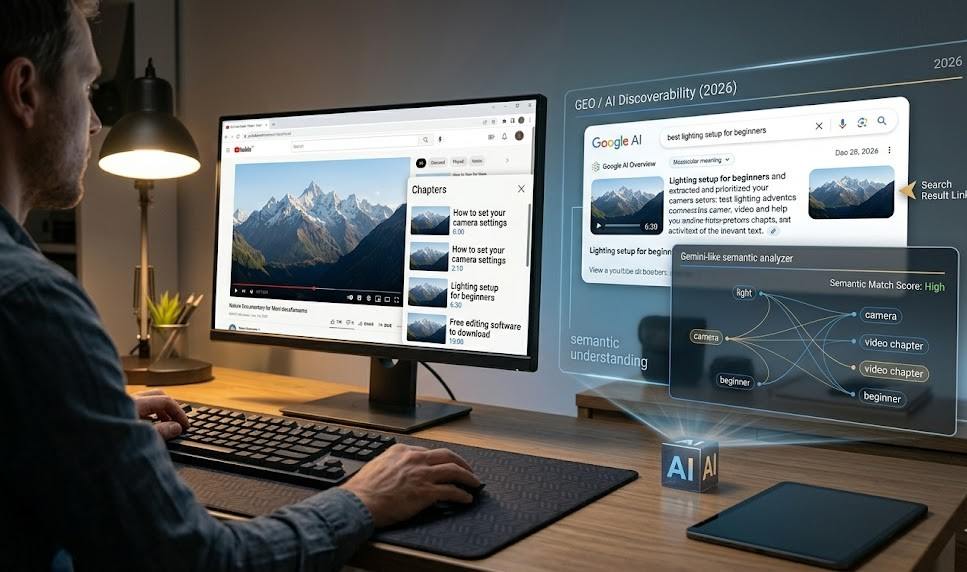
Search has changed. People now get answers from Google’s AI Overviews, ChatGPT, Gemini, and Perplexity – not just blue links. This is where Generative Engine Optimization, or GEO, comes in. Chapters play a quiet but real role here.
Here’s how chapters help your video get found by AI and modern search:
- Google “key moments.” Google can surface a specific chapter directly in search results, deep-linking searchers to the exact second that answers their query.
- Semantic understanding. In 2026, Gemini analyzes video content by meaning, not just metadata. When your chapter titles match the words actually spoken in each section, you reinforce the semantic signals that help recommendation and discovery.
- Structured data for machines. Chapters give algorithms a clean, labeled map of your video. That structure makes it easier for an AI system to pull and cite the right segment.
The practical takeaway is simple: accurate, descriptive chapter titles that mirror your spoken content are now a discovery asset, not just a viewer convenience. Generic labels like “Part 1” waste that opportunity entirely.
Why Are My YouTube Chapters Not Working? (Troubleshooting)
If you’ve added timestamps but no chapters appear, run through this table. One of these is almost always the cause.
| Problem | Why it happens | Fix |
| No 0:00 start | The first timestamp doesn’t mark the very first second | Make sure your list begins with 0:00 |
| Fewer than 3 timestamps | YouTube needs at least three | Add a third break, even if it’s just an intro |
| Chapters too close | Two timestamps under 10 seconds apart | Space them at least 10 seconds apart |
| Out of order | Times not listed earliest to latest | Reorder them chronologically |
| Wrong punctuation | A period or semicolon instead of a colon | Use a colon (4:20, not 4.20) |
| No space after the time | Title runs into the timestamp | Add a space: 4:20 Title |
| Too many chapters | Over the 50-chapter limit | Trim the list under 50 |
| Processing delay | YouTube is still updating | Wait a few minutes and refresh |
Myth check: do you need 1,000 subscribers?
You’ll see this claim everywhere, and it’s wrong. You do not need 1,000 subscribers to add manual chapters. There is no subscriber minimum for typing timestamps into your description. That rule is a long-running myth. Some advanced features require account verification, but basic manual chapters are open to everyone.
When You Should NOT Use Chapters
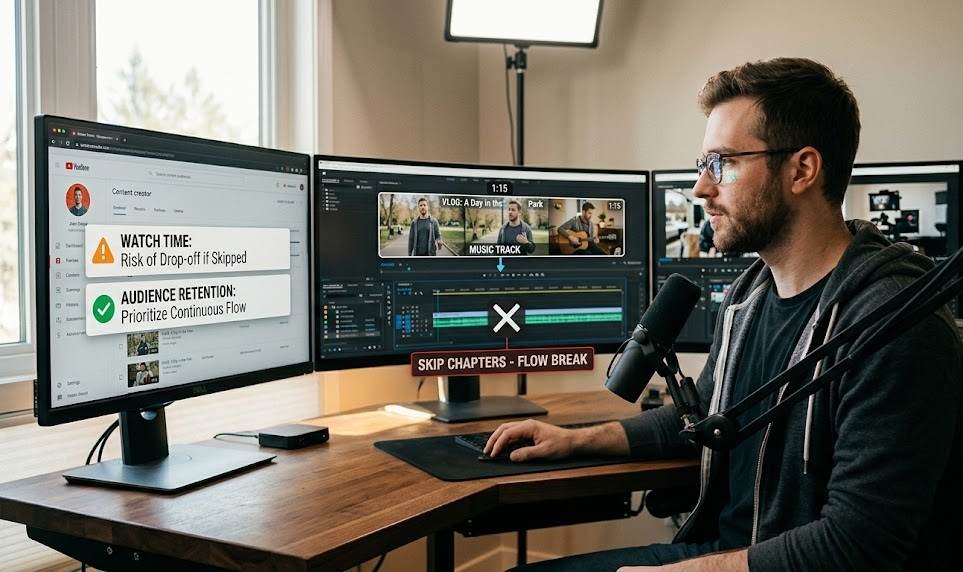
Chapters are great – but not for every video. Adding them in the wrong spot can actually hurt performance by encouraging people to skip the parts that build watch time.
Skip chapters when:
- The video is very short (under about two minutes). There’s nothing meaningful to divide.
- The content is continuous, like a music track, a vlog, or a short skit, where skipping breaks the flow.
- You can’t make three real sections without forcing it.
In short videos especially, letting viewers jump around can reduce watch time and audience retention, which can hurt how the video performs. Use chapters where structure genuinely helps the viewer – not just because you can.
Copy-Paste Chapter Template
Here’s a ready-made template. Replace the times and titles with your own, keep one chapter per line, and start at 0:00.
0:00 Introduction
1:00 [First main point]
3:30 [Second main point]
6:00 [Third main point]
9:15 [Step-by-step walkthrough]
13:00 [Common mistakes to avoid]
16:00 [Summary and next steps]
Drop this into your description, swap in your real content, and save. That’s all it takes to learn how to put chapters in a YouTube video the right way.
Quick Recap
You now know how to use YouTube chapters from start to finish. Here are the key points to remember:
- Chapters are sections built from timestamps you type in the description.
- The 3 rules: start at 0:00, list 3+ timestamps in order, keep each 10+ seconds.
- On PC: YouTube Studio → Content → your video → Description → add timestamps → Save.
- On mobile: YouTube Studio app → tap video → edit → Description → add timestamps → Save.
- Automatic chapters save time but need human editing for the best titles.
- Chapter titles are crawlable SEO text – make them descriptive, not generic.
- In 2026, good titles also boost visibility in Google AI Overviews and tools like Gemini.
- No, you don’t need 1,000 subscribers for manual chapters.
Five minutes of work, real gains in navigation, watch time, and discovery. Add chapters to your next upload and see the difference.
Frequently Asked Questions
How do I enable chapters on YouTube? You don’t flip a switch. Just add a list of timestamps to your video description, starting with 0:00, with at least three entries spaced 10+ seconds apart. Saving the video enables chapters automatically.
How many chapters do I need at minimum? At least three. The first must start at 0:00, and each chapter must run at least 10 seconds. Fewer than three, and chapters won’t appear.
Can I add YouTube chapters on my phone? Yes. Use the free YouTube Studio app, tap your video, edit the Description, and add your timestamps the same way you would on a PC.
What’s the right timestamp format? Use m:ss for videos under 10 minutes, mm:ss for 10–59 minutes, and hh:mm:ss for videos an hour or longer. Always use a colon and add a space before the title.
Do automatic chapters and manual chapters conflict? No. If you add manual timestamps in the description, they override YouTube’s automatic chapters. What you type always wins.
Why aren’t my chapters showing up? The usual causes are missing the 0:00 start, having fewer than three timestamps, chapters under 10 seconds apart, timestamps out of order, or wrong punctuation. Check those first.
Do chapters help with SEO? Yes. Chapter titles are crawlable text that help Google and YouTube understand your content, and they can appear as “key moments” in search results. In 2026 they also feed AI search tools.
Do I need 1,000 subscribers to use chapters? No. That’s a myth. Manual chapters have no subscriber requirement.